Sign Up with Epic Games
INK. for Affinity Photo & Designer: 44 raster Brushes + Dehalftonizer macros — for desktop & iPad

in Brushes


INK. for Affinity Photo & Affinity Designer:
44 raster Brushes + Dehalftonizer macros
🟢 Release 2.0. Edited and improved while working on numerous commercial and creative works.
🟢 For desktop and iPad versions
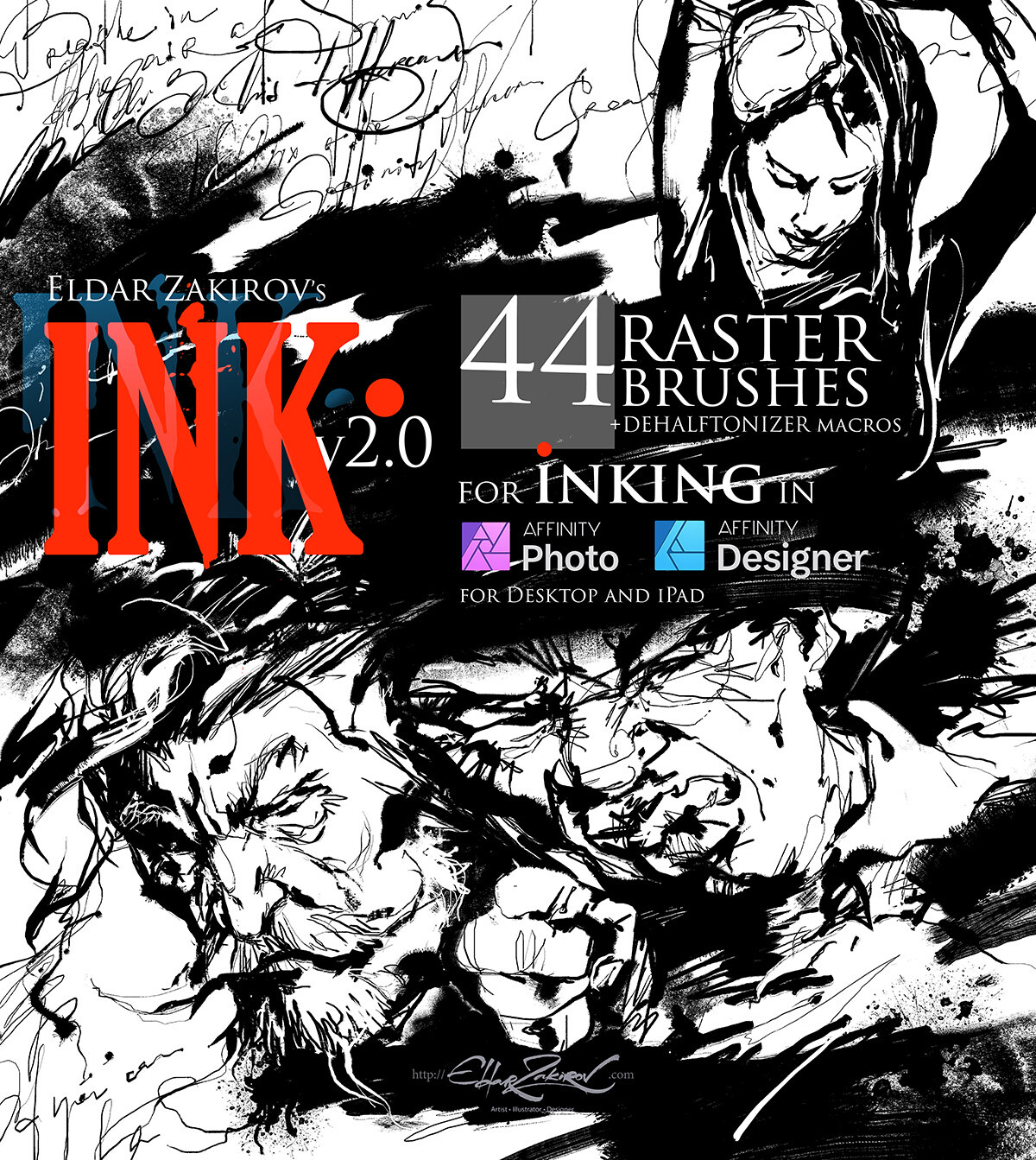
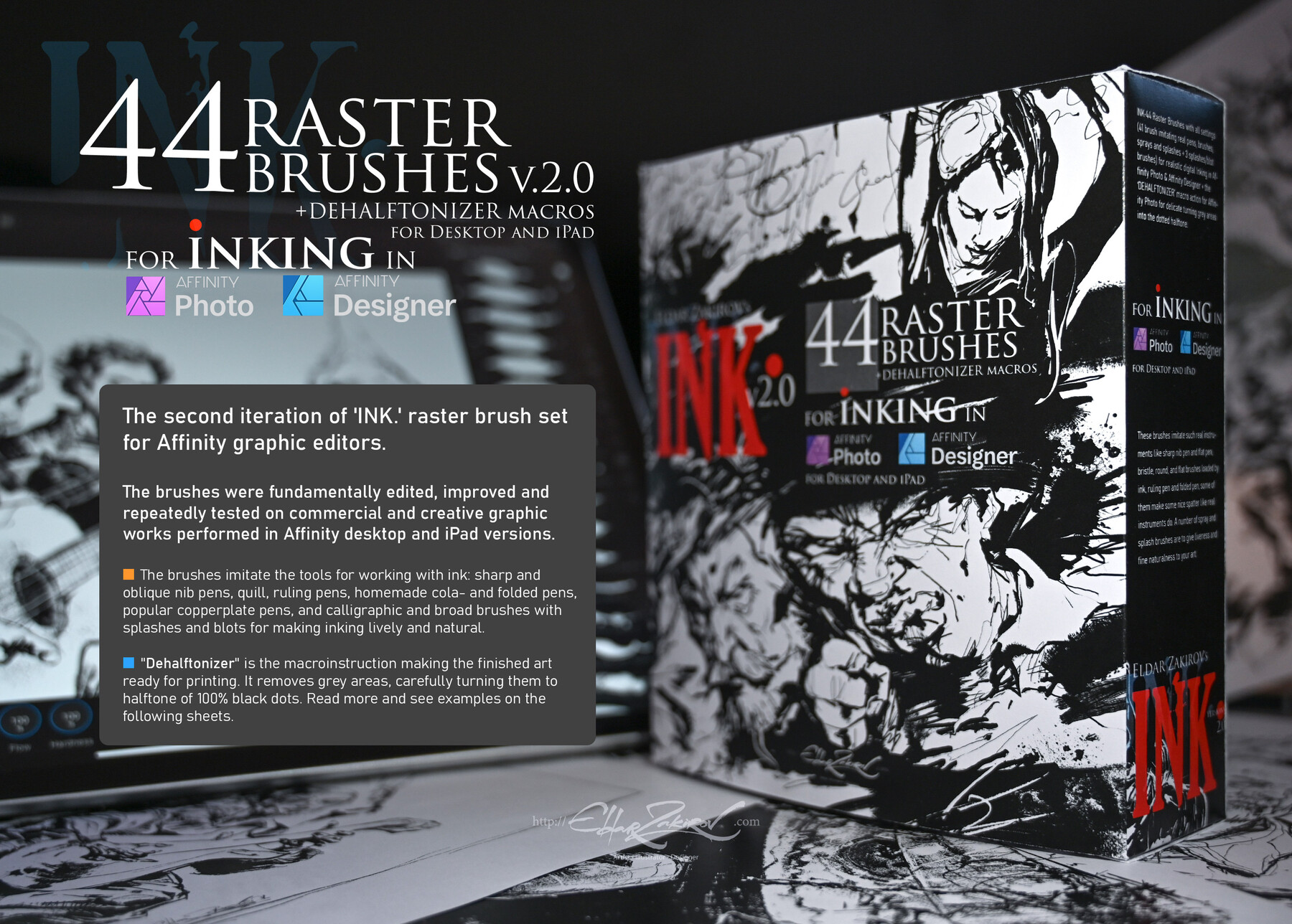
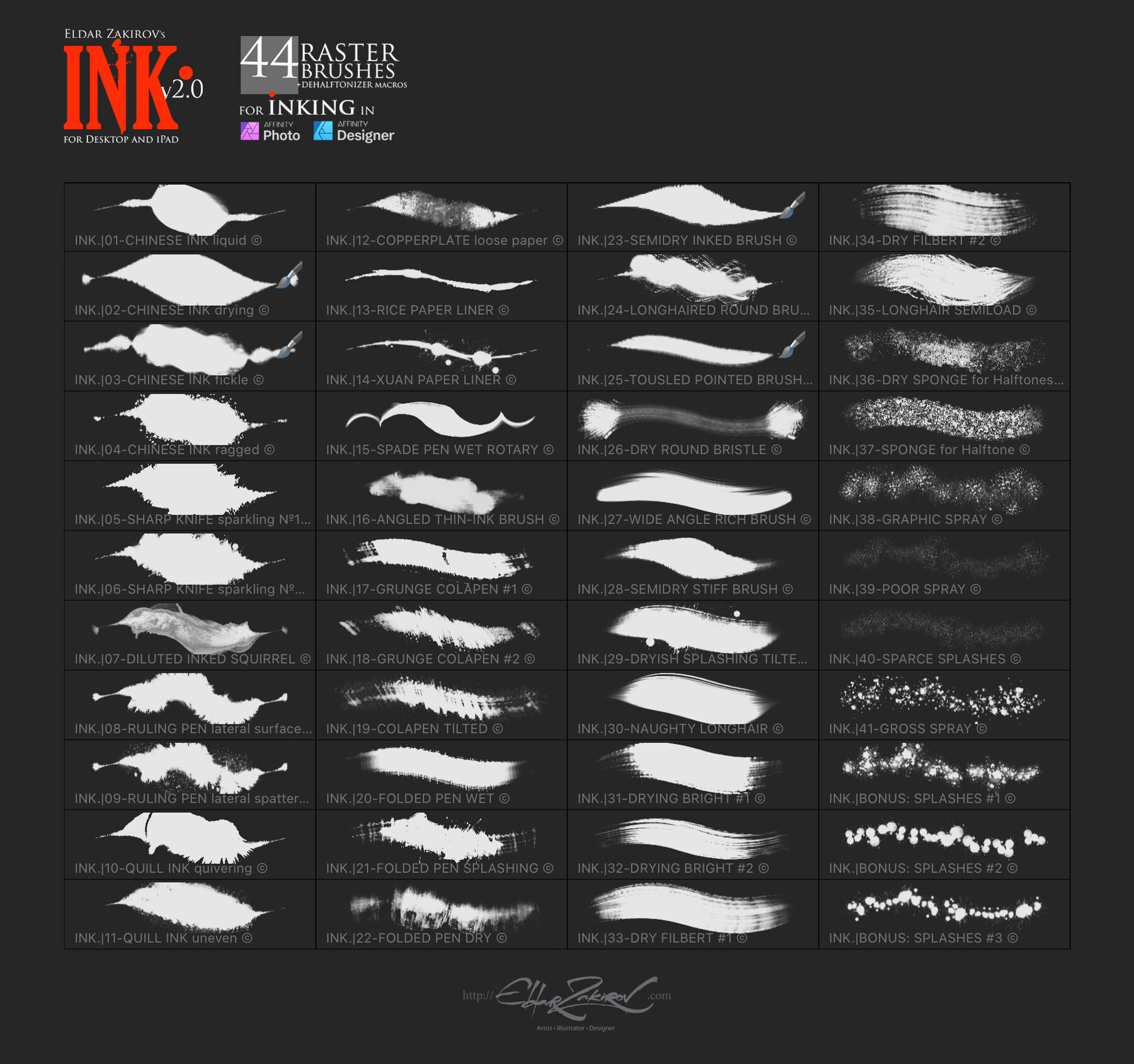
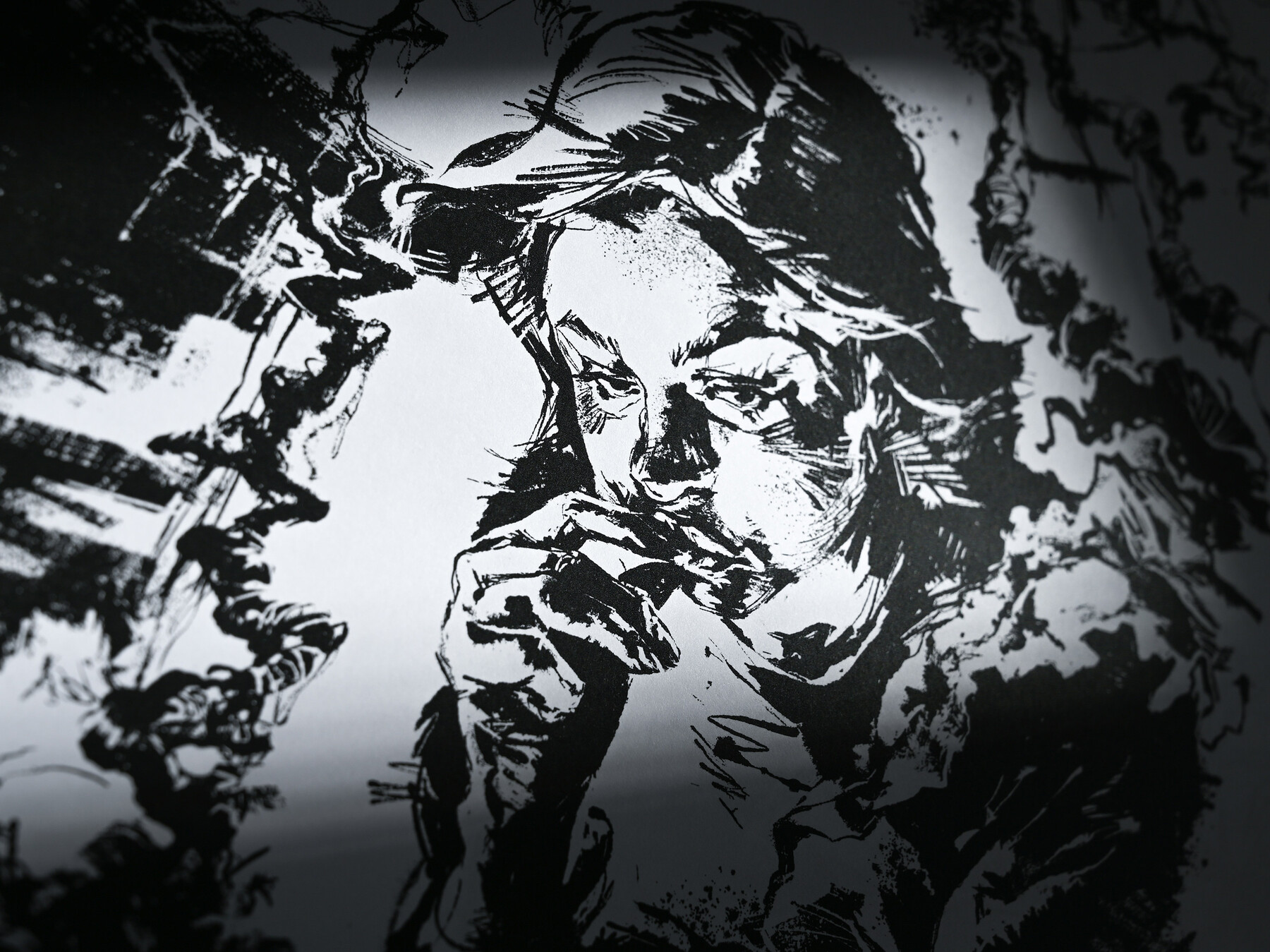
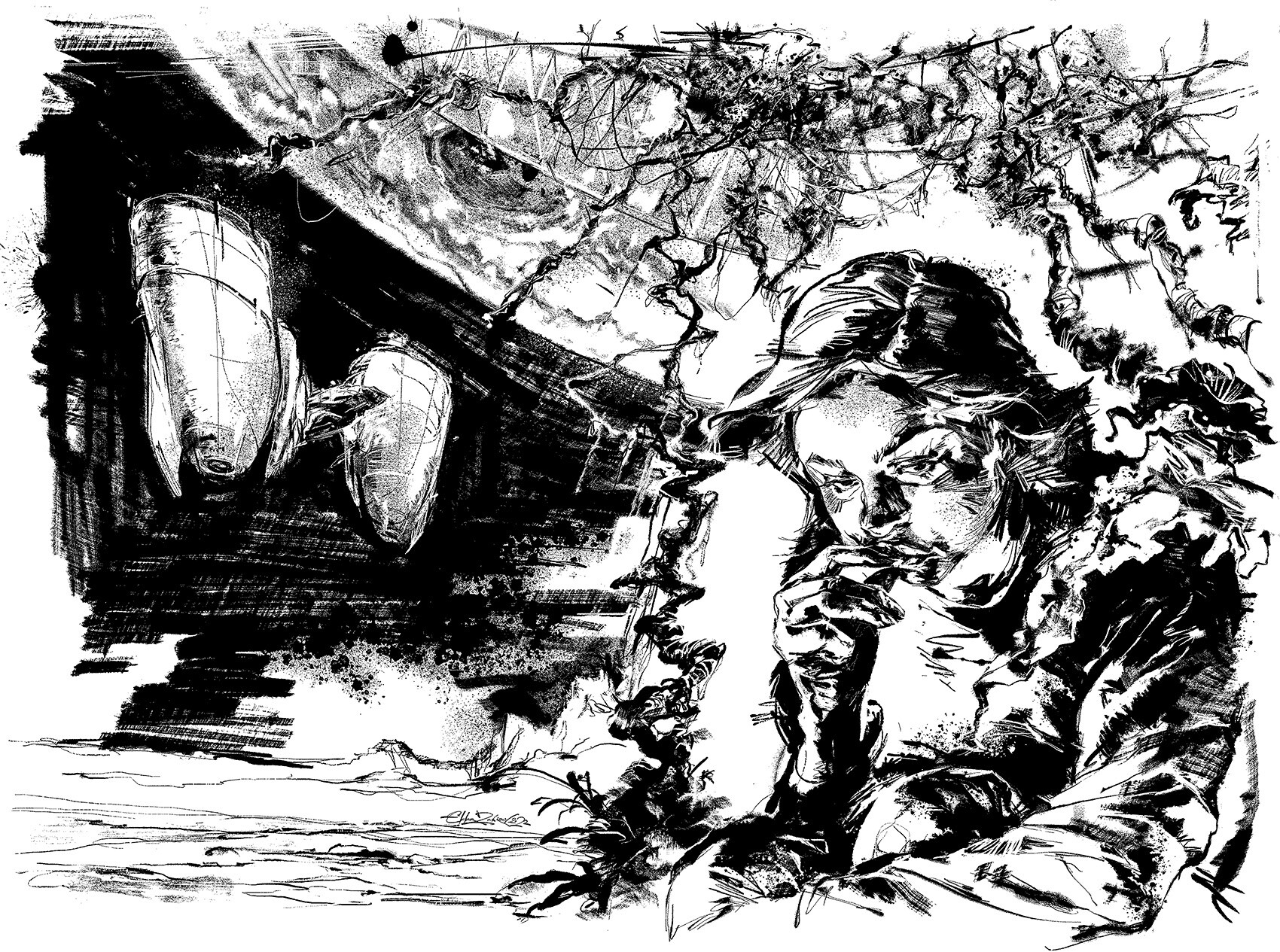
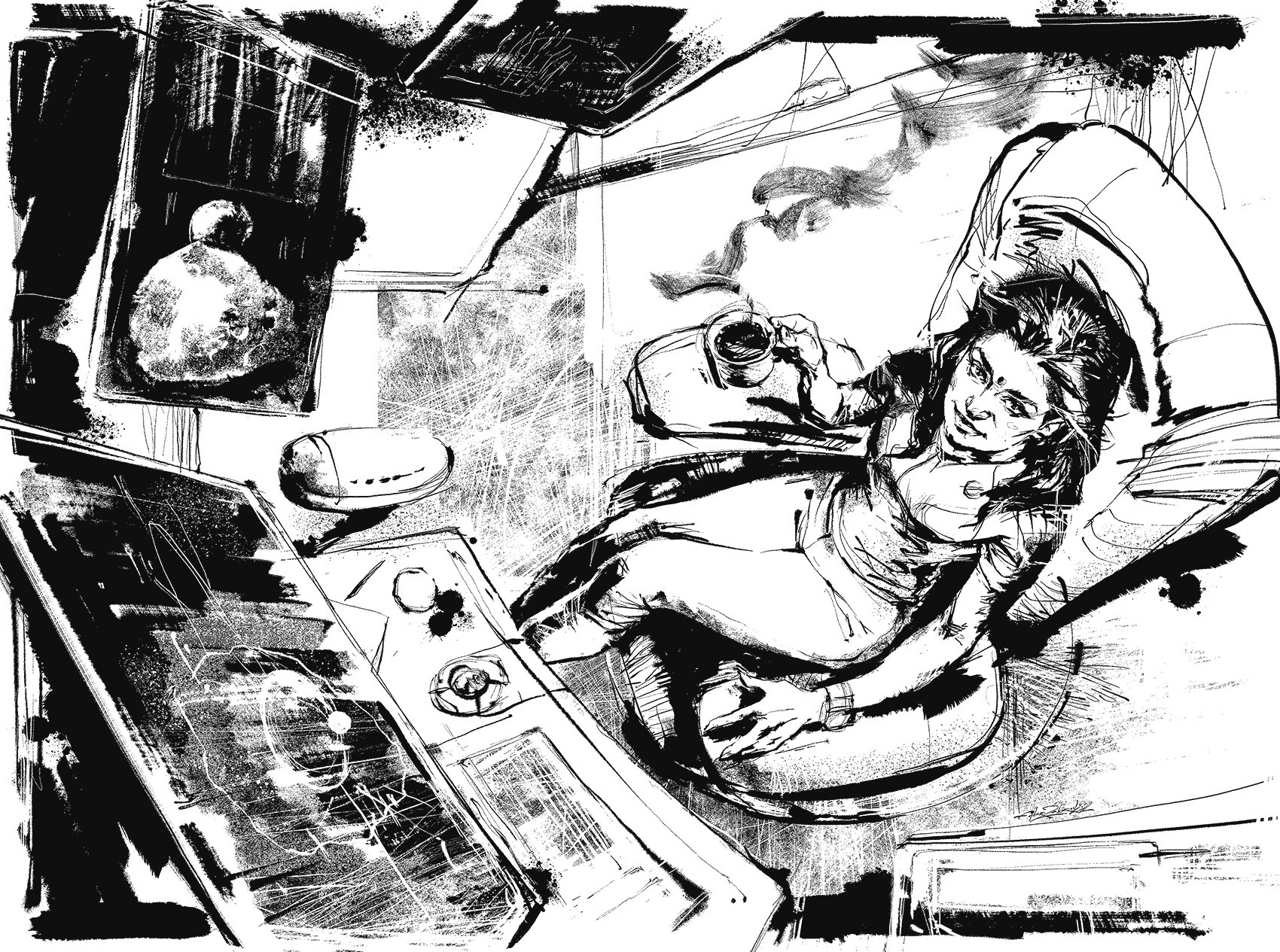
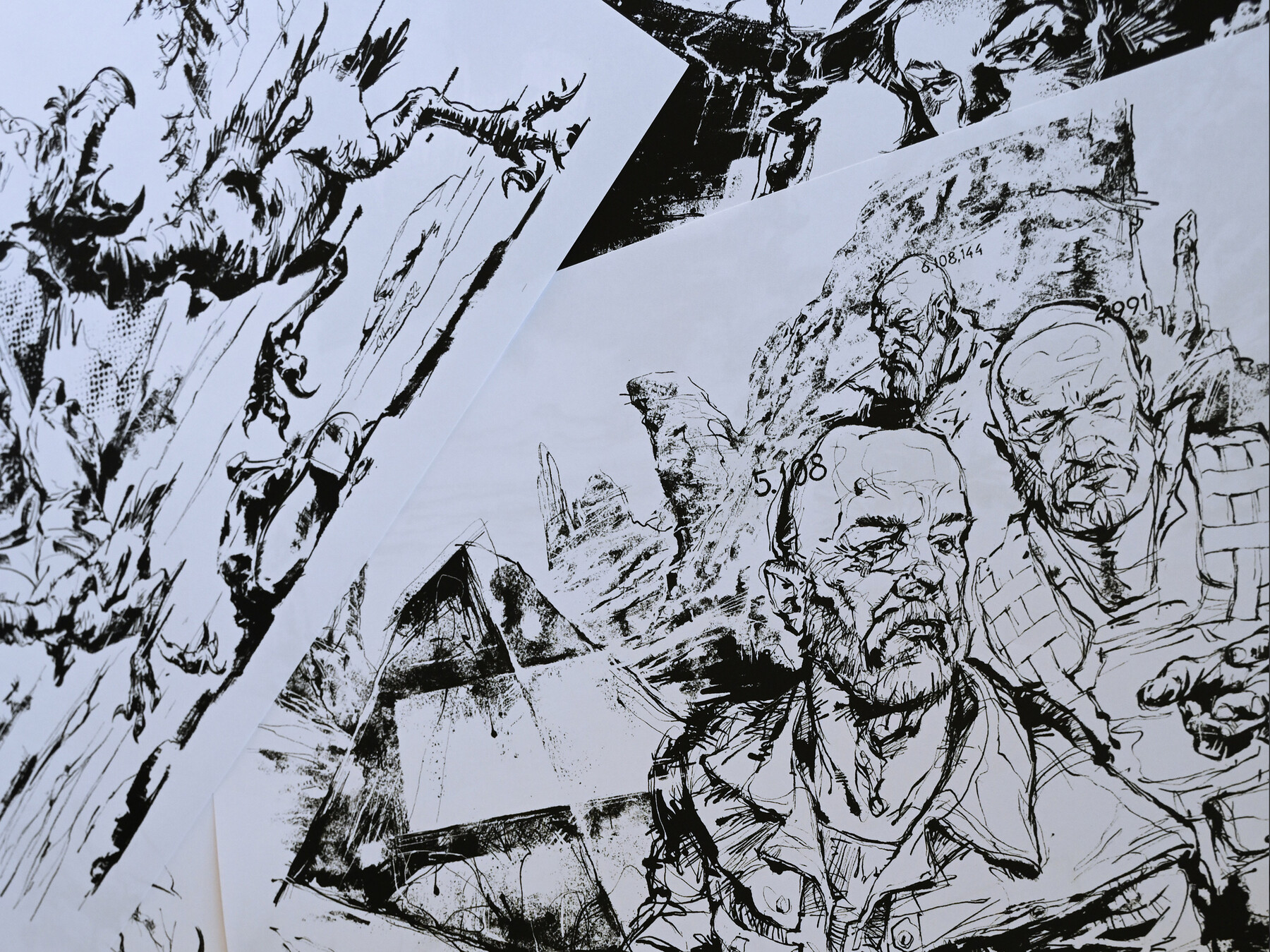
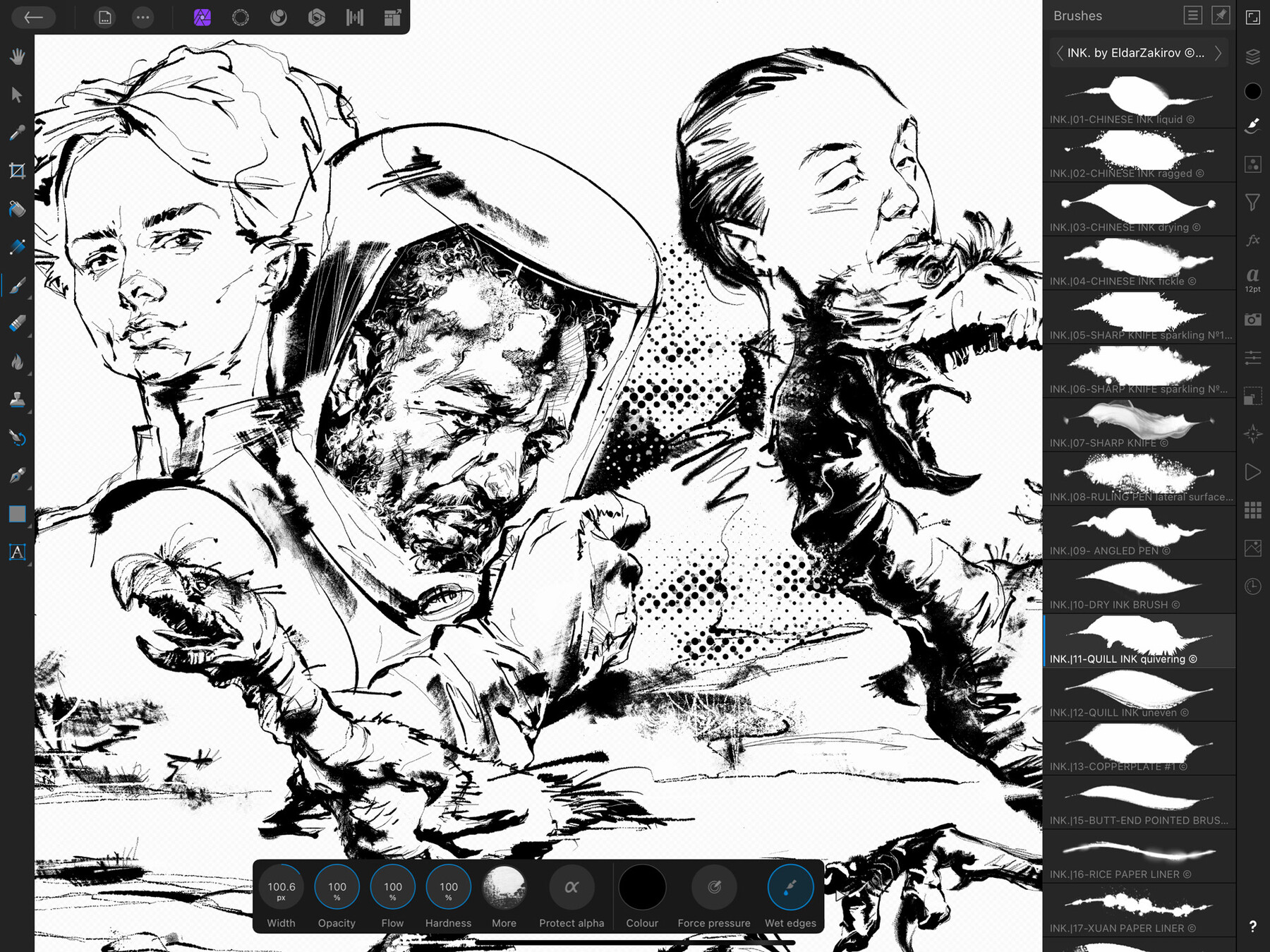
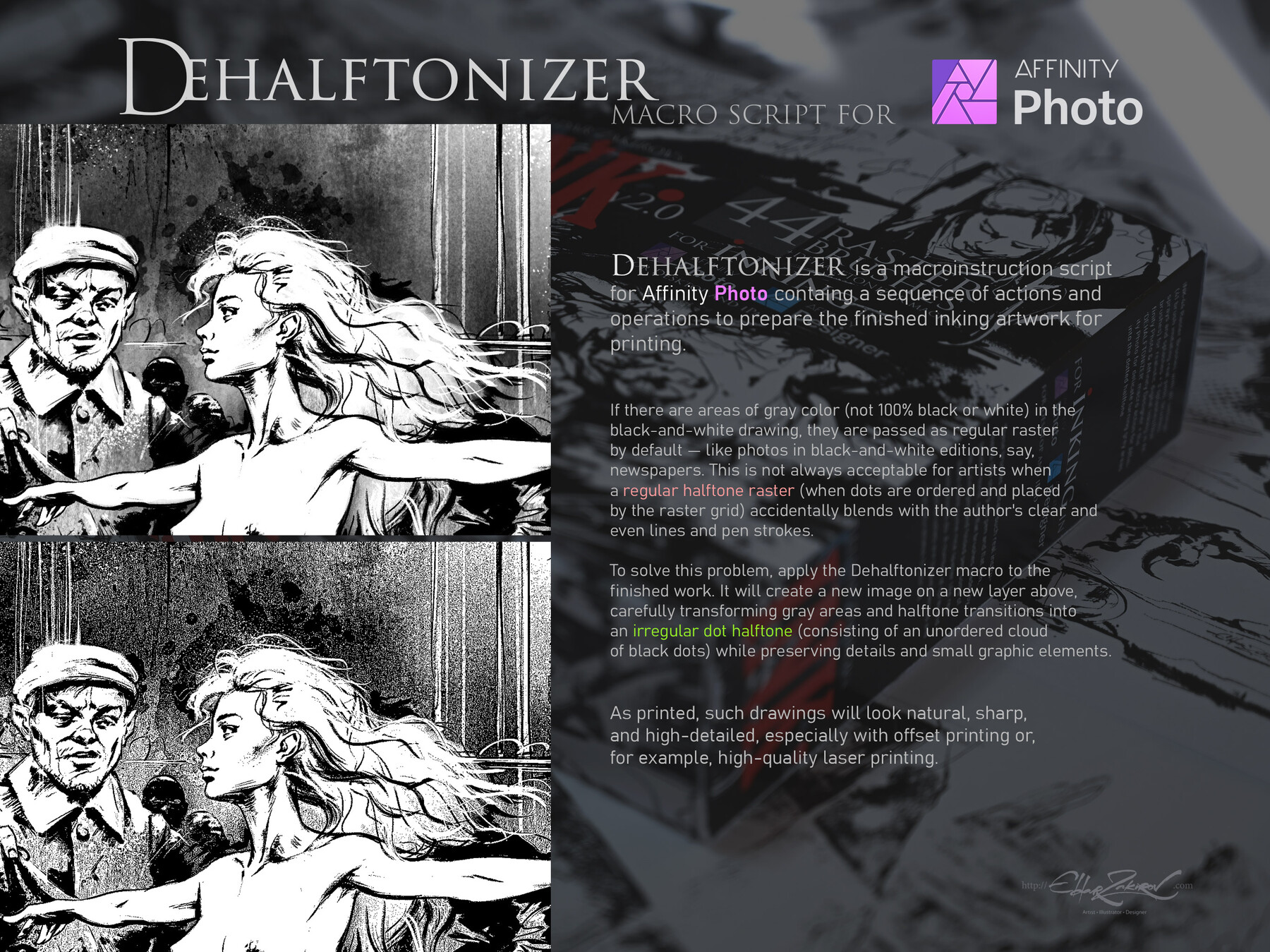
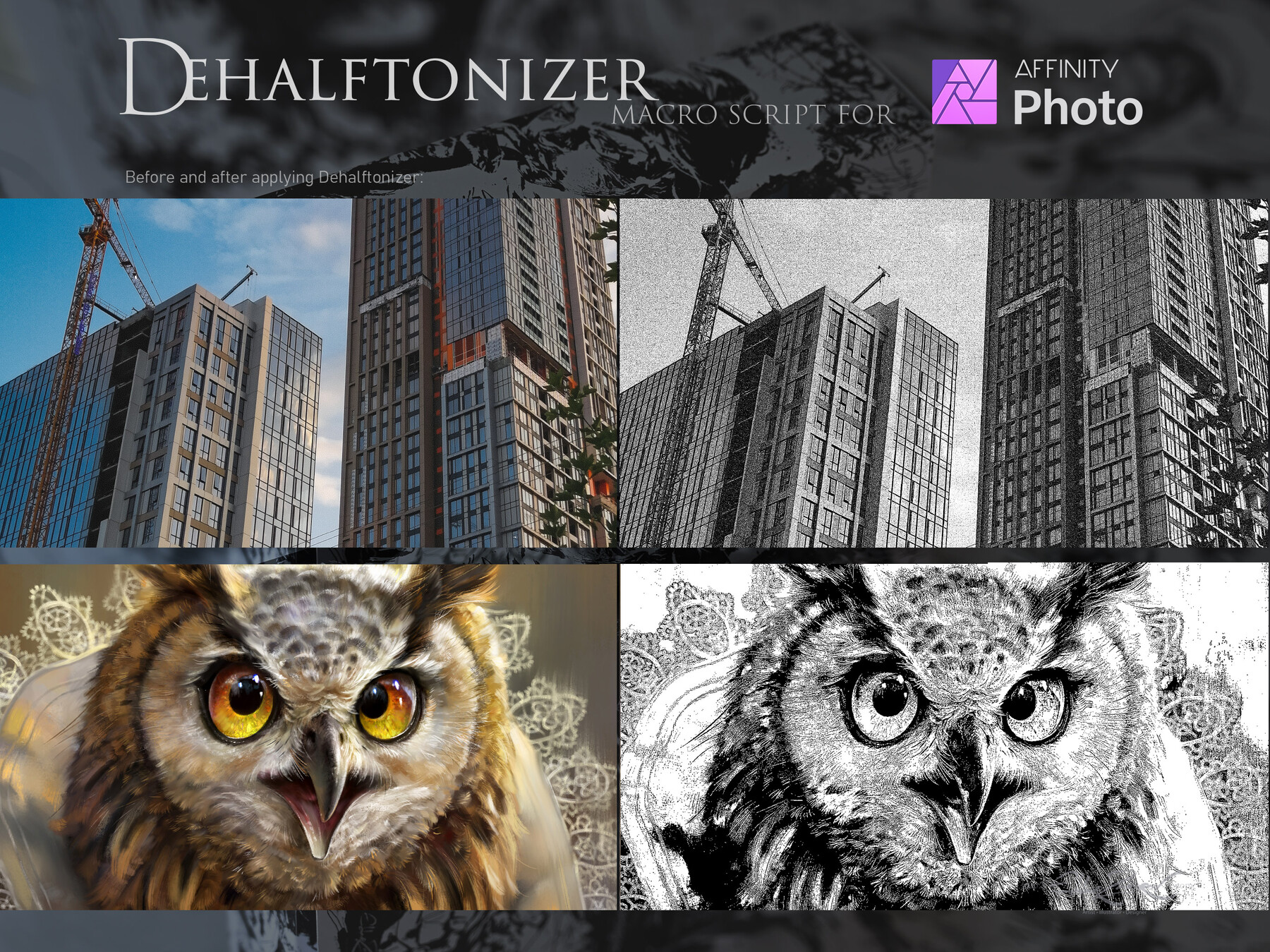
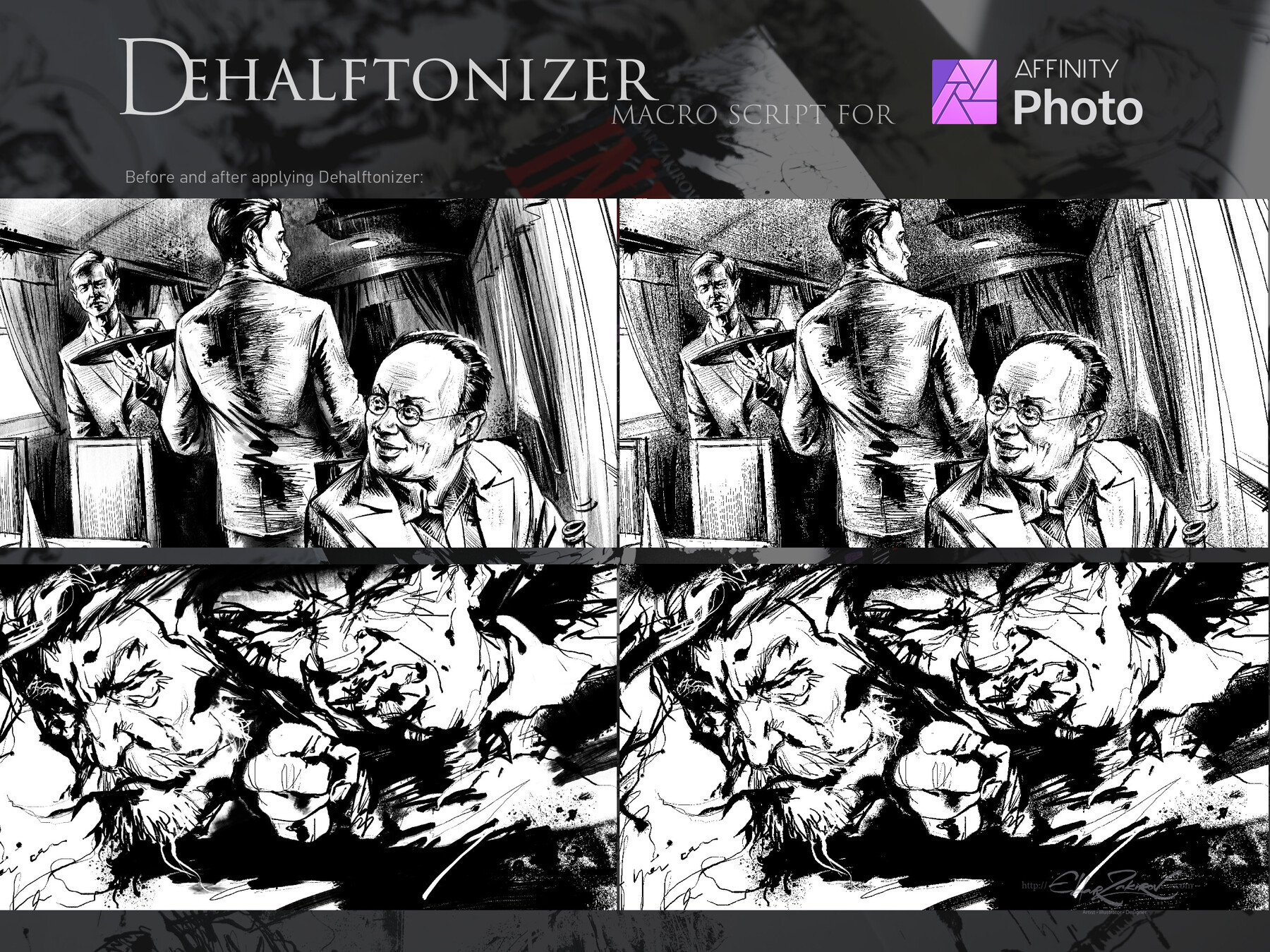
INK•44 Raster Brushes with all settings (41 brushes imitating real pens, brushes, sprays, and splashes + 3 splashes/blot brushes) for realistic digital Inking in Affinity Photo & Affinity Designer + the ‘DEHALFTONIZER’ macro action for Affinity Photo for delicate turning grey areas into the dotted halftone.
■
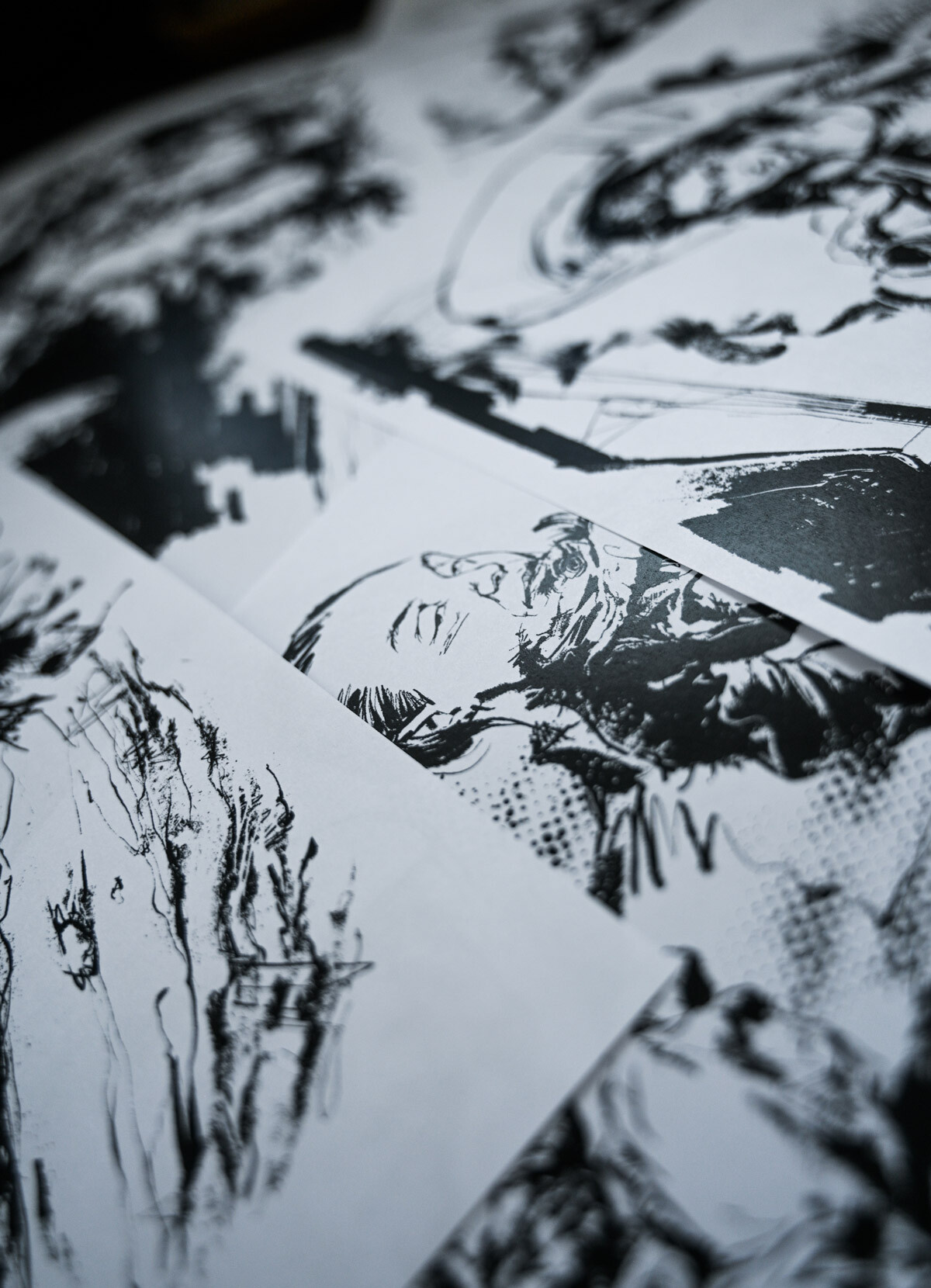
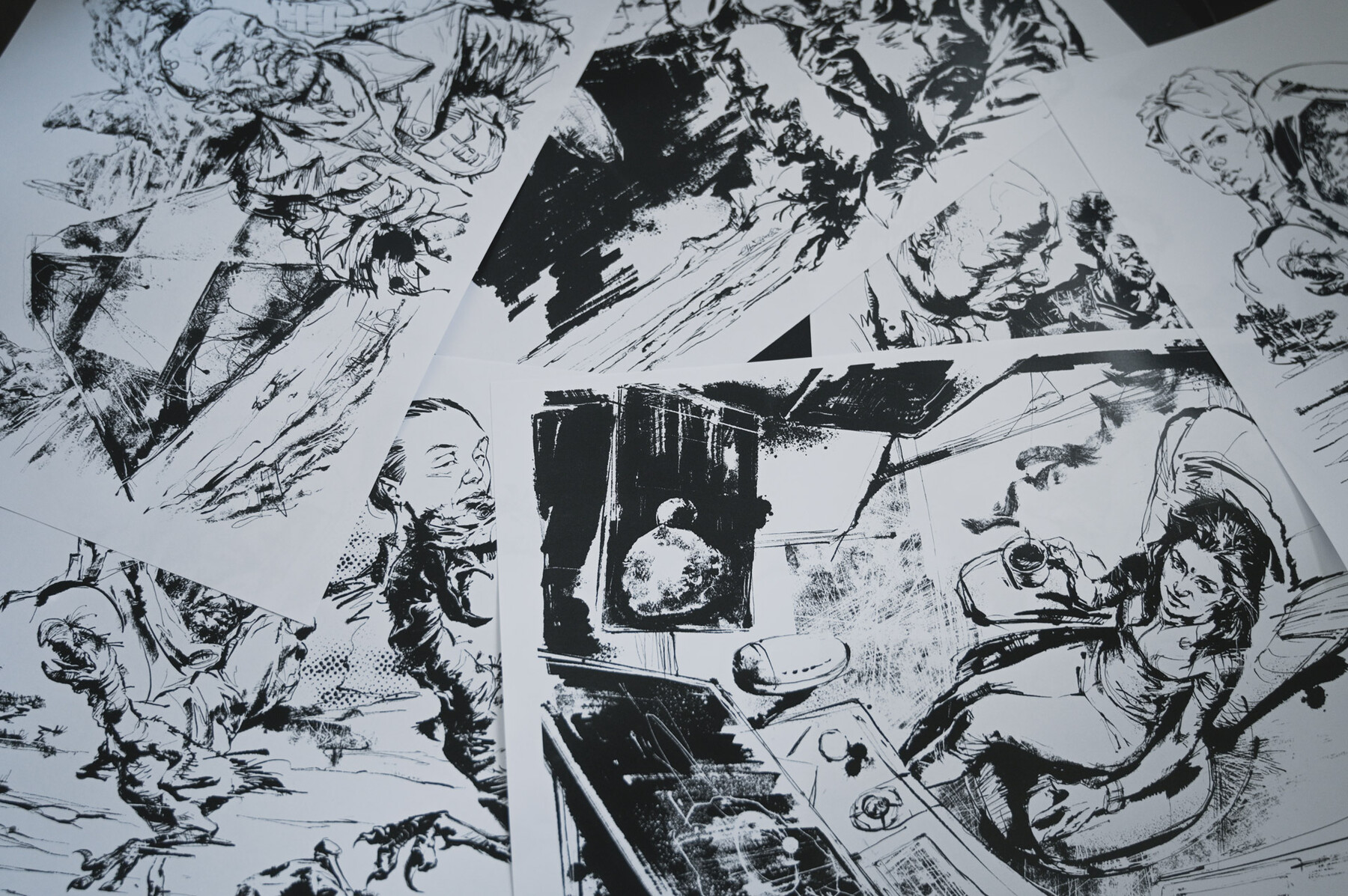
These brushes mimic authentic tools like sharp-nib pens and flat pens, as well as bristle, round, and flat brushes full of ink. They even create delightful splatters like the real thing! With a variety of sprays and splash brushes, your art will come to life, radiating a captivating and natural charm. Embrace the creativity!
Utilize them for creating drawings, illustrations, comics, handwritten text, and more. The variety of brushes offers a broad selection of expressive techniques and tools suited to each task and the individual artist's style.
■
🟢 Minimal versions where the brushes were tested:
- Affinity Photo v. 1.8.2 v. 1.10.5.1342 (Desktop version)
- Affinity Photo v. 1.10.5 (iPad version)
- Affinity Designer v. 1.7.0 (Desktop version)
■
🟢 You will receive:
- 44 Affinity raster brushes saved in the "INK. by EldarZakirov R2.0 ©2016-2022.afbrushes" file;
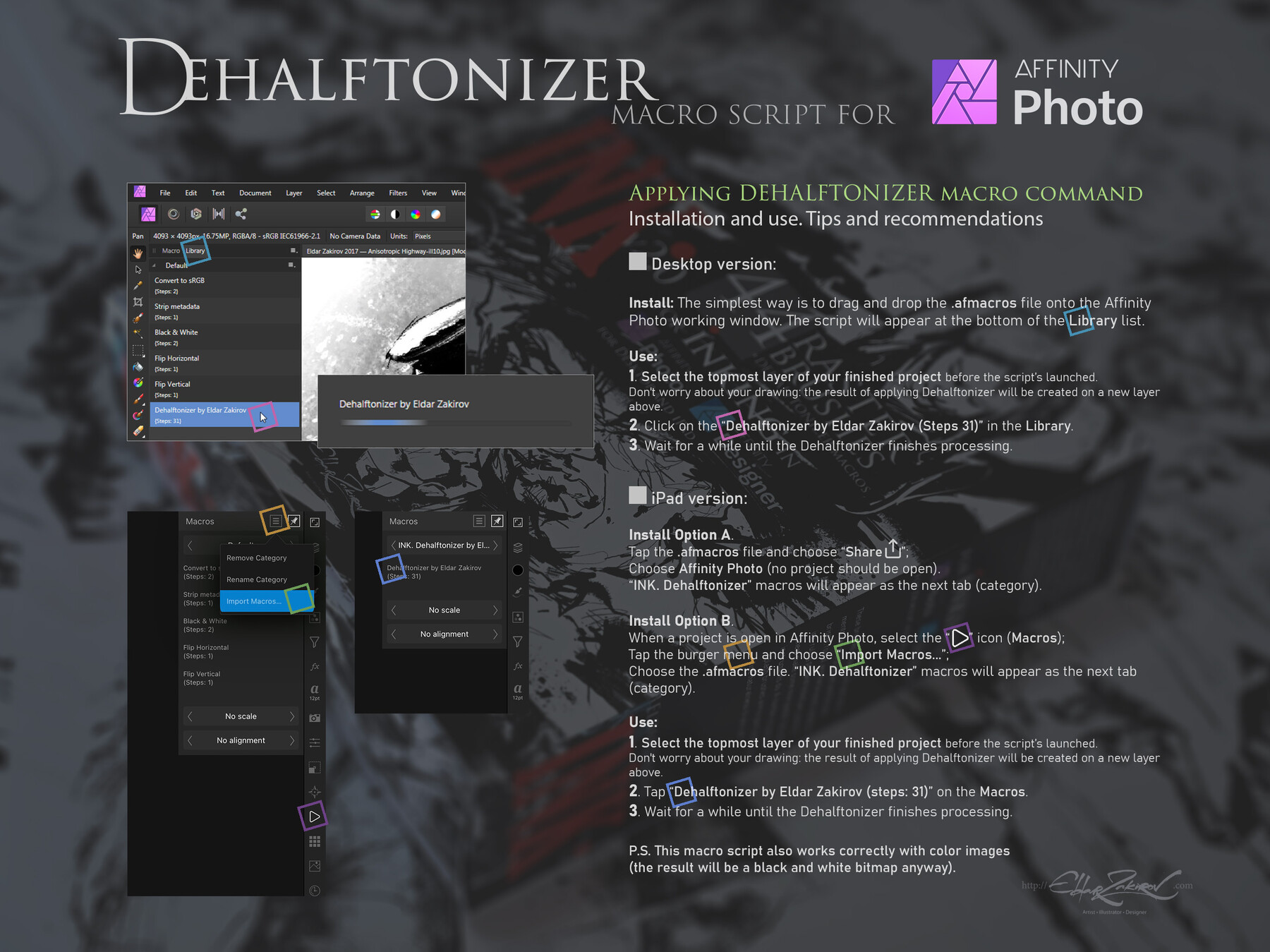
- INK. Dehalftonizer by Eldar Zakirov.afmacros. The macro action for turning gray areas to dotted halftones with 100% black or white for printing is saved as a Library macro. This is a more convenient option than the previous one.
■
• How to install the brushes:
1. In Affinity Designer, click on the icon next to the logo that resembles a series of squares to enter the Pixel Persona. You will start here by default in Affinity Photo.
2. To import the brushes, drag and drop the brushes file named "INK. by EldarZakirov R2.0 ©2016-2022.afbrushes" into the working area or the program window. Once imported successfully, you will find the brushes in the Brushes tab located in the top-right corner of the window, under "INK. by EldarZakirov ©2016-2020" in the dropdown list.
3. Alternatively, you can find the Brushes tab in the top right corner of the screen. Click on the Options icon (which looks like a stack of four horizontal lines) in the right-side panel. Select 'Import Brushes,' which will open your computer files. Locate and select the file for the downloaded “INK.” brush set (INK. by EldarZakirov R2.0 ©2016-2022.afbrushes). After importing, you will find the brushes in the Brushes tab in the top-right corner, under "INK. by EldarZakirov ©2016-2022" in the dropdown list.
Release Notes
- The seriously updated and improved release version. The brushes have been seriously edited and tested on numerous commercial and creative works.
CATEGORIES
Special Offer! Get 10% off when you buy 2 products. Get 15% off when you buy 3 or more products. Applies to all products from this seller only from USD $1.00 to USD $100.00
Personal License for Single user
USD $14.00
License: Standard License
Stock Assets
For personal use and one commercial project (up to 2,000 sales or 20,000 views).
TutorialsOne copy to be used by a single user.
Installable ToolsOne installation by a single user.
Learn MorePersonal License for personal and commercial use by One (single) user. Read MoreRead Less
Files (2)
For Studios, Working groups or a Group of users
USD $45.00
License: Extended Commercial License
Stock Assets
For use on an unlimited number of commercial projects with no limits on sales or views.
Learn MoreFor Studios, Working groups, or a group of users, as well as for use on an unlimited number of commercial projects with no limits on sales or views. Read MoreRead Less
Files (2)
https://artstn.co/m/LW3D
Copied
More by Eldar Zakirov


Add a tip for Eldar Zakirov
Tips are appreciated, but optional!