Sign Up with Epic Games
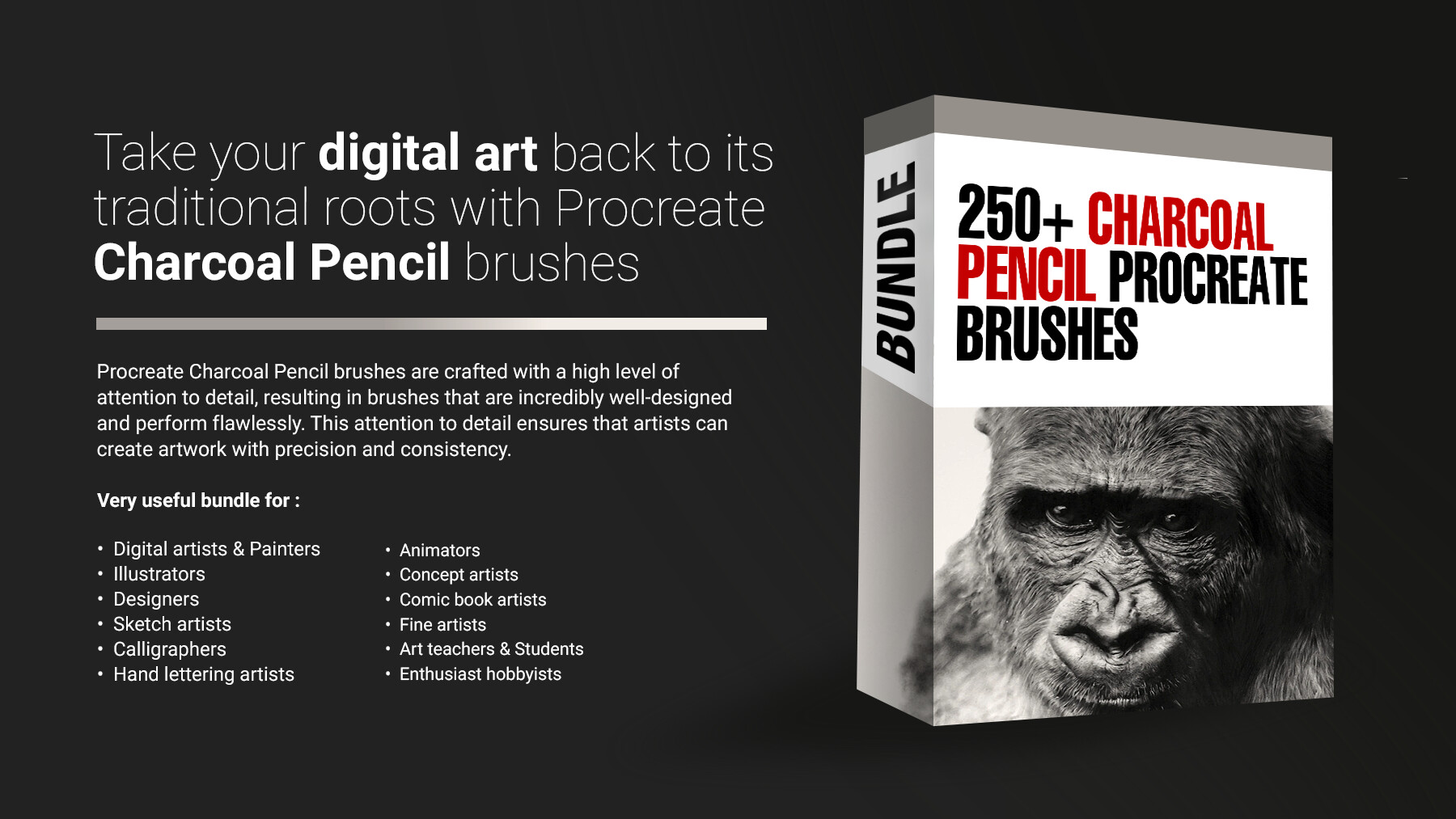


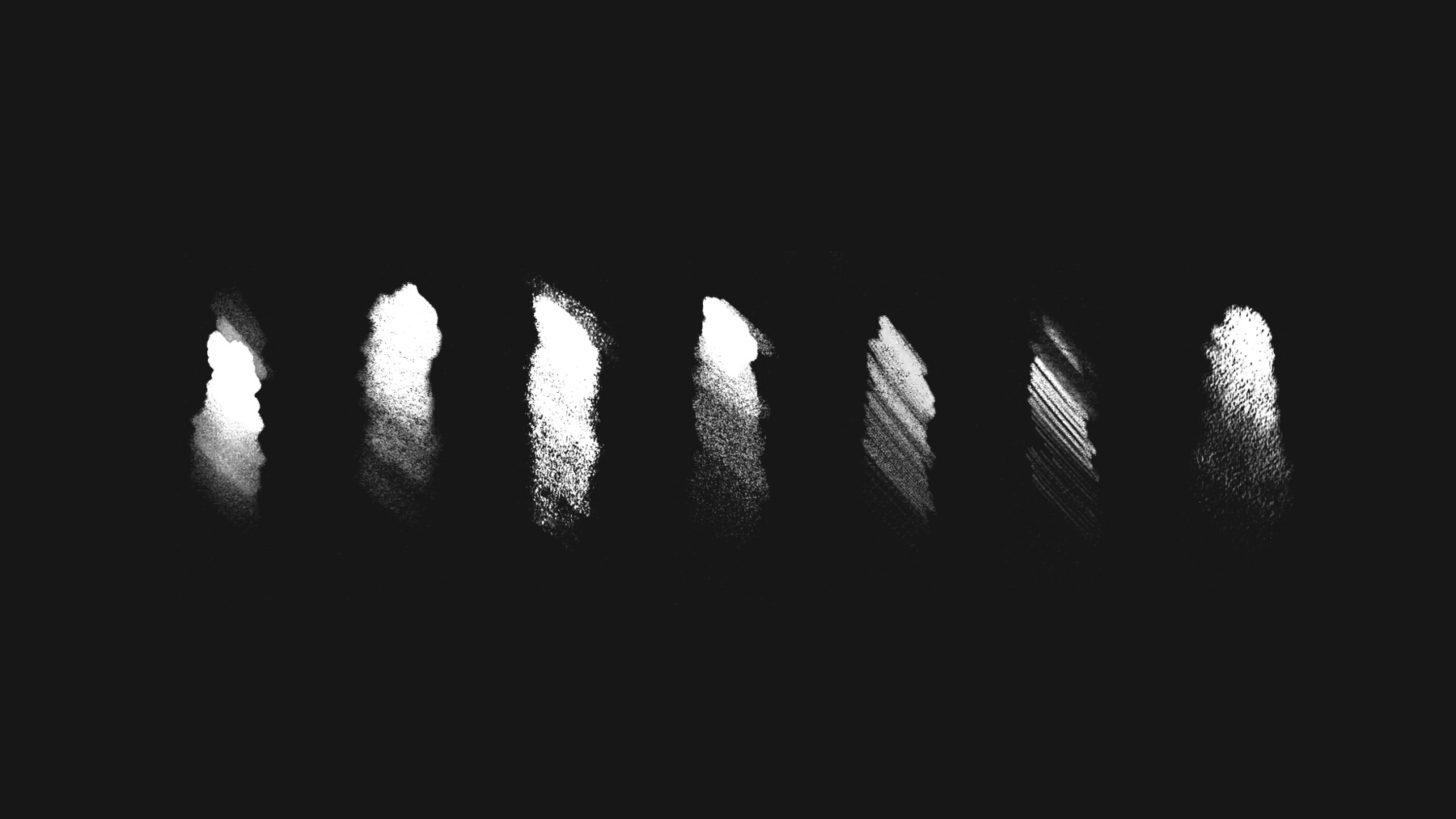


250+ Charcoal Pencil Procreate Brushes are a powerful tool for digital artists looking to add a touch of traditional media to their artwork. These brushes are meticulously crafted to replicate the organic, gritty texture of charcoal pencils, providing users with a unique and authentic drawing experience.
Whether you're a professional illustrator or a hobbyist, Procreate Charcoal Pencil brushes are a must-have in your digital art toolkit. They are perfect for creating expressive and dynamic sketches, tonal studies, and even finished pieces with a traditional look and feel. With the right technique, these brushes can be used to create stunning portraits, landscapes, and still-life pieces that are rich in texture and depth.
One of the best things about Procreate Charcoal Pencil brushes is their versatility. These brushes can be used for a wide range of applications, including shading, hatching, and blending. The brushes come in a variety of sizes, allowing artists to create fine, delicate lines or bold, expressive strokes with ease. Additionally, the brushes can be used in combination with other Procreate brushes, such as the smudge or eraser tools, to achieve a range of effects.
Procreate Charcoal Pencil brushes are also incredibly easy to use. They can be downloaded and installed directly into the Procreate app, making it simple to get started right away. And because they are digital, there's no need to worry about messy charcoal dust or smudging.
In conclusion, Procreate Charcoal Pencil brushes are an essential tool for any digital artist looking to add a touch of traditional media to their artwork. They are versatile, easy to use, and capable of producing stunning, textured results. So if you're looking to take your digital art to the next level, be sure to add Procreate Charcoal Pencil brushes to your collection. Your customers will be impressed by the quality and authenticity of the final artwork, and will surely appreciate the opportunity to work with such a versatile and unique tool.
Features of this set:
- Authentic charcoal texture: Unlike regular Procreate brushes that mimic digital media, Procreate Charcoal Pencil brushes are designed to replicate the unique texture and feel of traditional charcoal pencils. This provides artists with a more organic and natural drawing experience, allowing them to create artwork that has a traditional look and feel.
- Versatility: Although they are designed to replicate the look and feel of charcoal pencils, Procreate Charcoal Pencil brushes are incredibly versatile. They can be used for a wide range of applications, including sketching, shading, and blending, and can be used in combination with other Procreate brushes to create unique effects.
- Customization: Procreate Charcoal Pencil brushes are highly customizable, giving artists the ability to tweak the settings to create the perfect brush for their individual style and needs. This allows for a high degree of creative control, and allows artists to achieve a wide range of unique effects.
- High-quality design: Procreate Charcoal Pencil brushes are crafted with a high level of attention to detail, resulting in brushes that are incredibly well-designed and perform flawlessly. This attention to detail ensures that artists can create artwork with precision and consistency.
- Exclusivity: Unlike regular Procreate brushes that can be found on multiple online stores, Procreate Charcoal Pencil brushes are custom-made and unique to your online store. This exclusivity provides a sense of authenticity and uniqueness to your customers, making them feel like they are getting something special and one-of-a-kind.
How to install your premium Procreate brush sets:
- Download a selection of different brushes from Dioeye Store. Custom brushes are often available in the form of a .brush or .brushset file.
- Open Procreate and go to the Actions menu, located in the top-right corner of the screen.
- Tap on the "Import" option.
- Select the brush set file you just downloaded.
- The brush set will be imported into Procreate and will be available for use in the Brushes panel.
- To access the newly imported brushes, tap on the Brushes panel, located in the top-right corner of the screen.
- Tap on the brush set you just imported and select the brush you want to use.
Here is some related Products:
- 565+ Watercolor Procreate Brushes
- 60+ Crayon, Chalk, Pastel, Oil Procreate Brushes
- 200+ Graffiti Spray, Street Art Procreate Brushes
- 1025+ Geometry and Pattern Procreate Brushes
- 485+ Ink, Calligraphy & Marker Pen Procreate Brushes
- 950+ Textures Procreate Brushes
- 423+ Oil Paint Procreate Brushes
If you still have questions, just send me a message to dioeye@gmail.com and I’m happy to help.
CATEGORIES
Special Offer! Get 10% off when you buy 2 products. Get 15% off when you buy 3 or more products. Applies to all products from this seller only from USD $1.00 to USD $100.00
Freelance & Personal Use License
USD $5.00
License: Standard License
Stock Assets
For personal use and one commercial project (up to 2,000 sales or 20,000 views).
TutorialsOne copy to be used by a single user.
Installable ToolsOne installation by a single user.
Learn MoreFor one user only. Commercial and personal use. Read MoreRead Less
Files (1)
Indie License (5 Users)
USD $57.00
License: Extended Commercial License
Stock Assets
For use on an unlimited number of commercial projects with no limits on sales or views.
Learn MoreFor small Studios with 5 users only. Commercial and personal use. Read MoreRead Less
Files (1)
Studio License (10+ Users)
USD $85.00
License: Extended Commercial License
Stock Assets
For use on an unlimited number of commercial projects with no limits on sales or views.
Learn MoreFor larger Studios with more than 10 users. Commercial and personal use. Read MoreRead Less
Files (1)
Studio Plus License (100- Users)
USD $214.00
License: Extended Commercial License
Stock Assets
For use on an unlimited number of commercial projects with no limits on sales or views.
Learn MoreFor art institutions and studios under 100 users. Commercial and personal use. Read MoreRead Less
Files (1)
https://artstn.co/m/do0oB
Copied
More by Kumaran Handy

Add a tip for Kumaran Handy
Tips are appreciated, but optional!