Sign Up with Epic Games
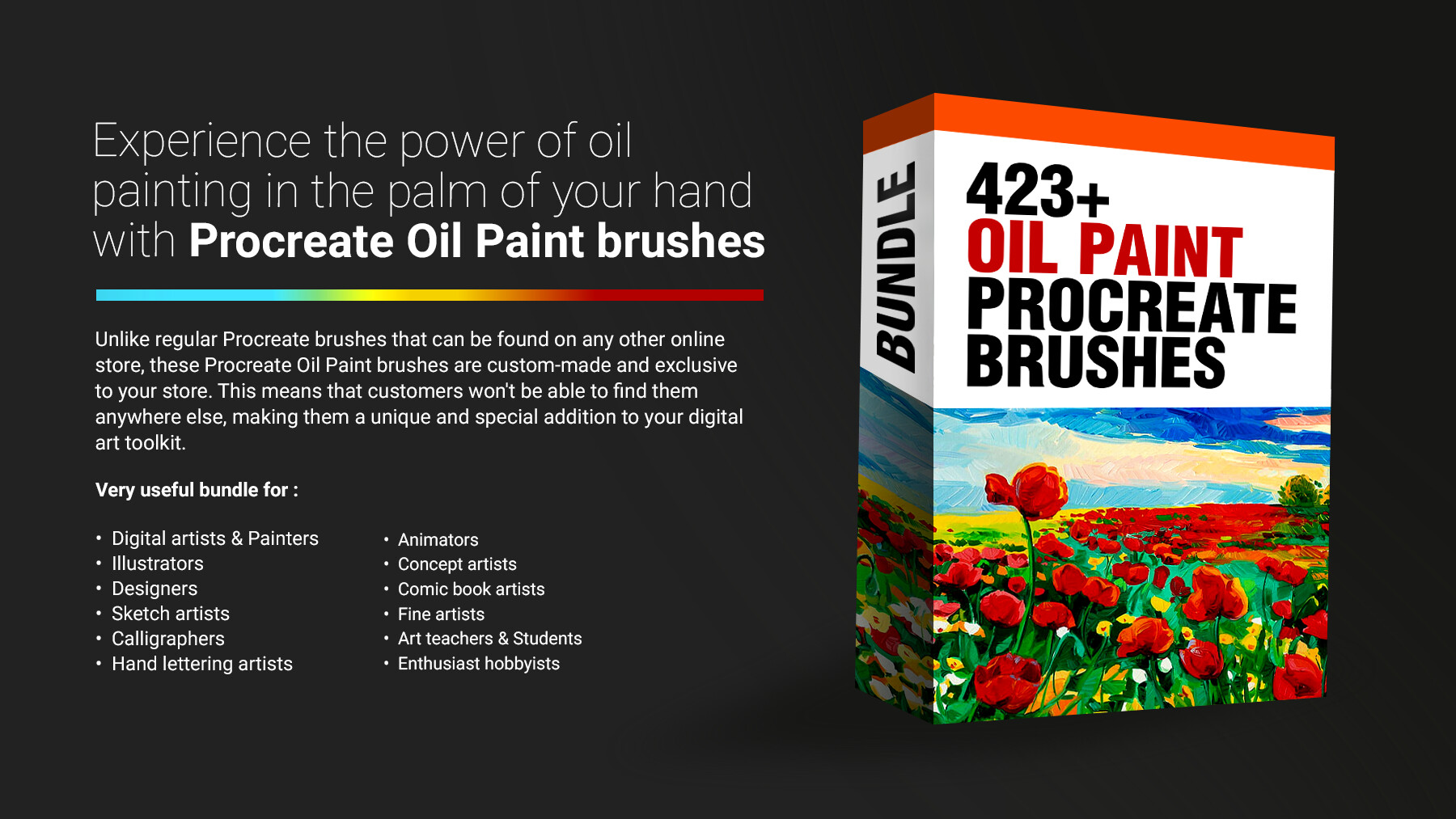
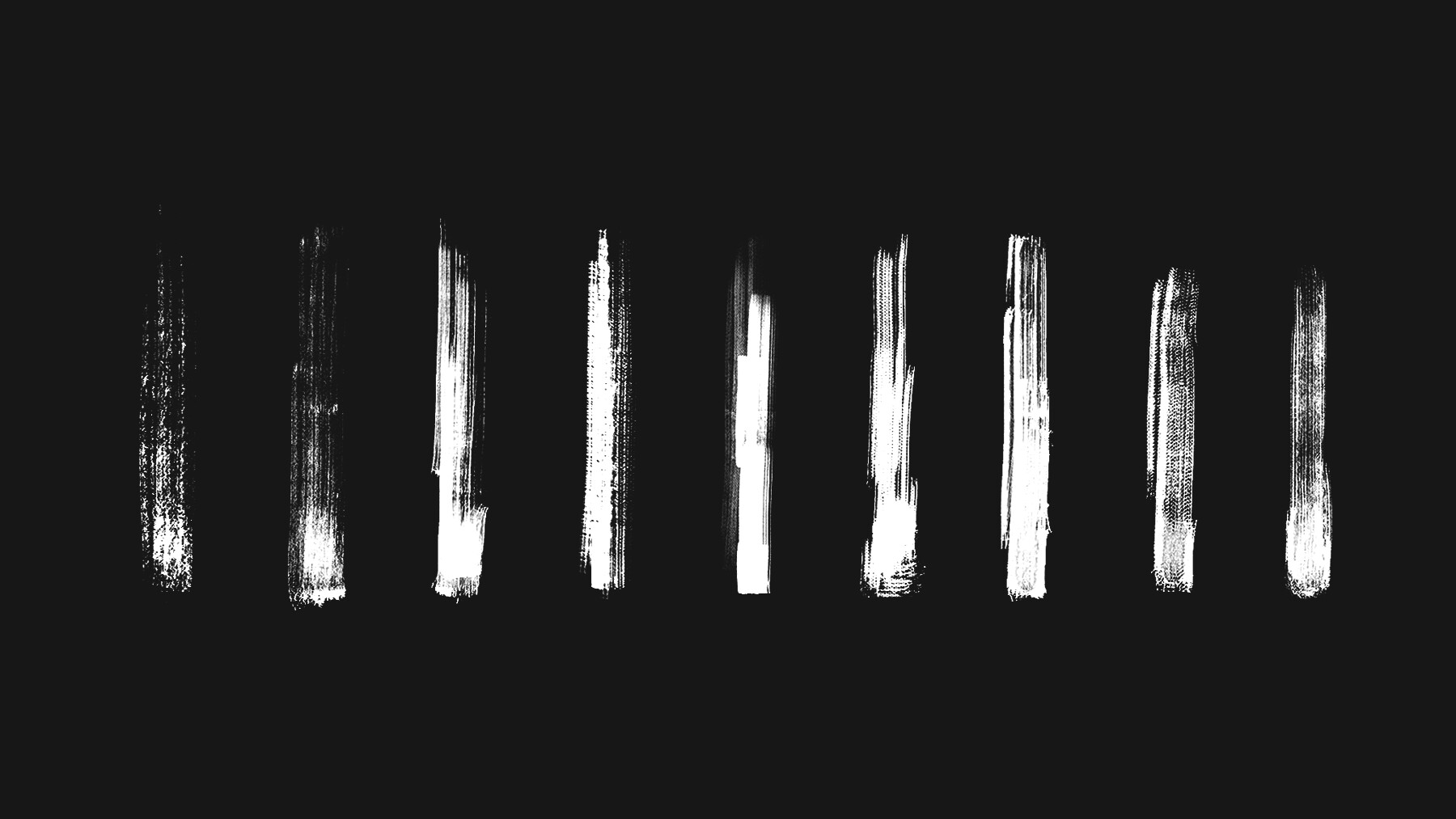

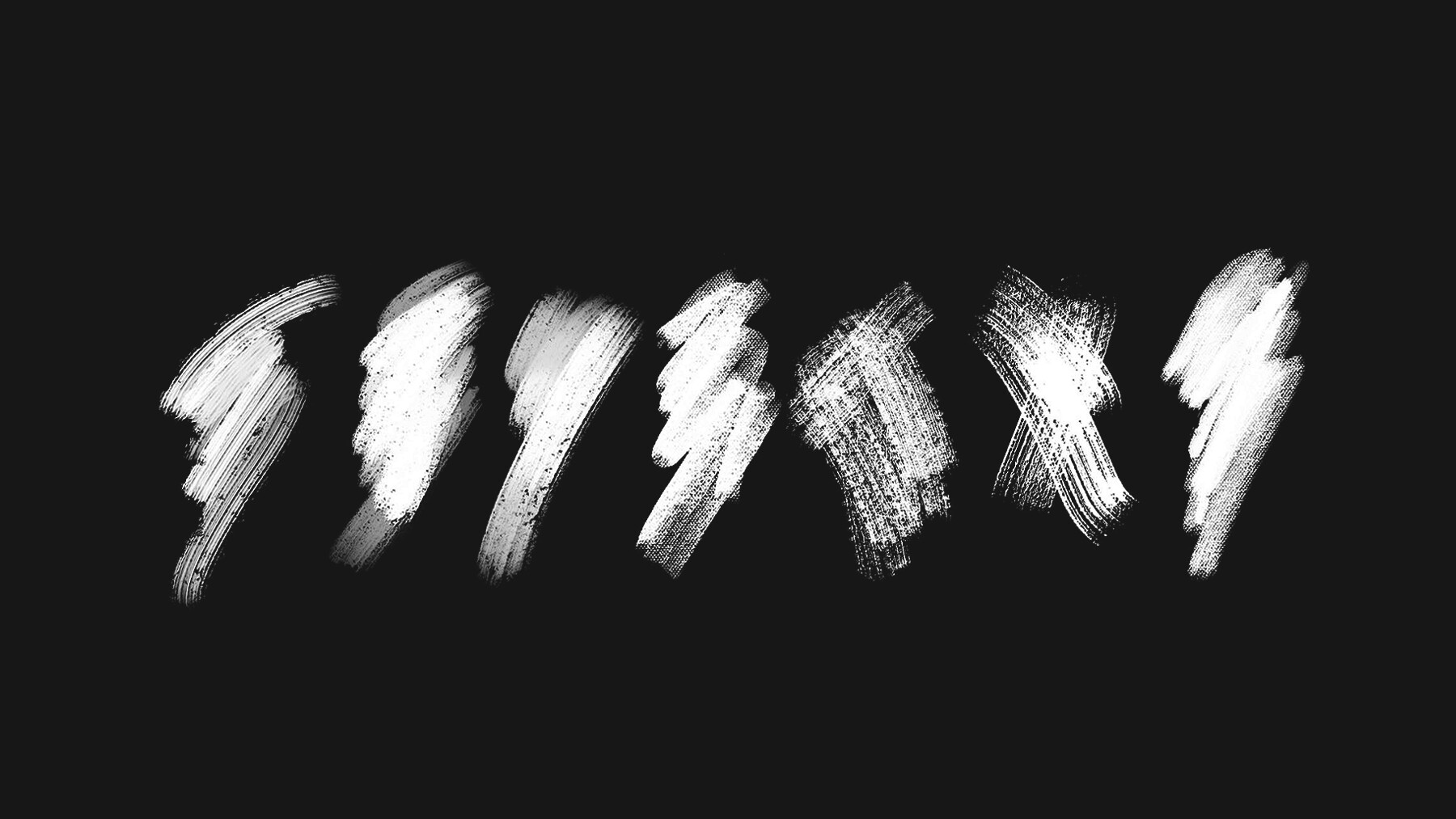

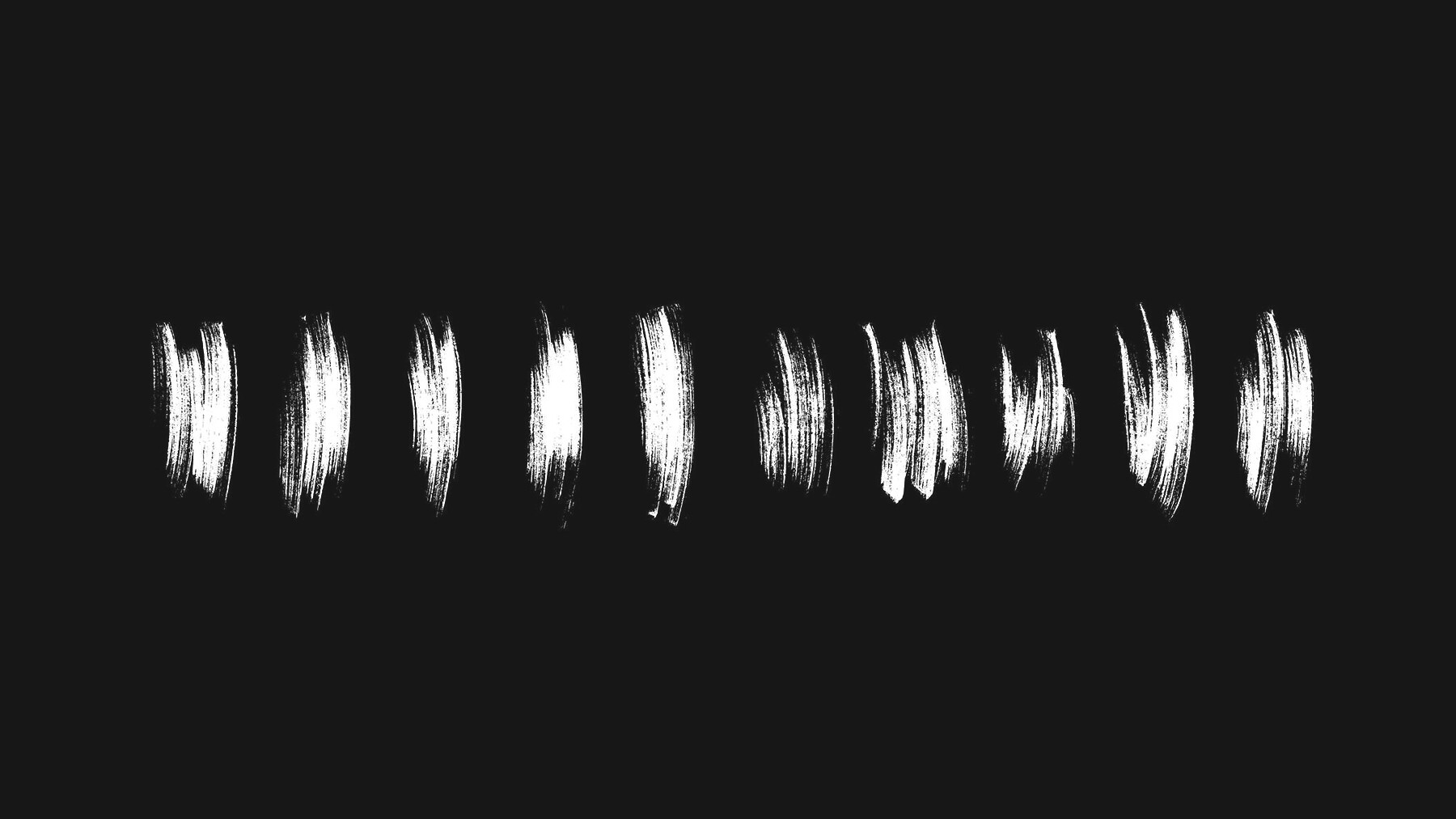

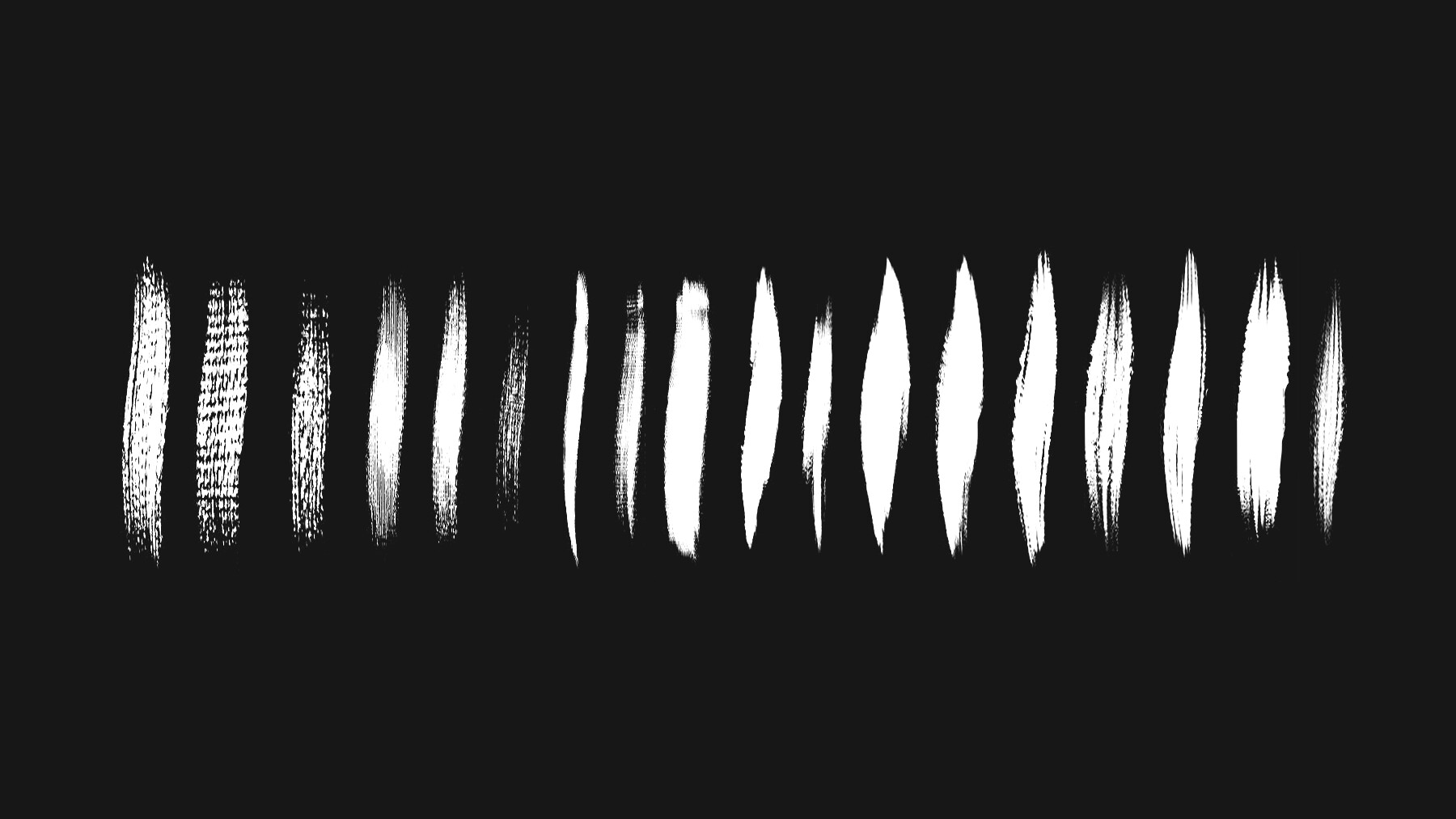

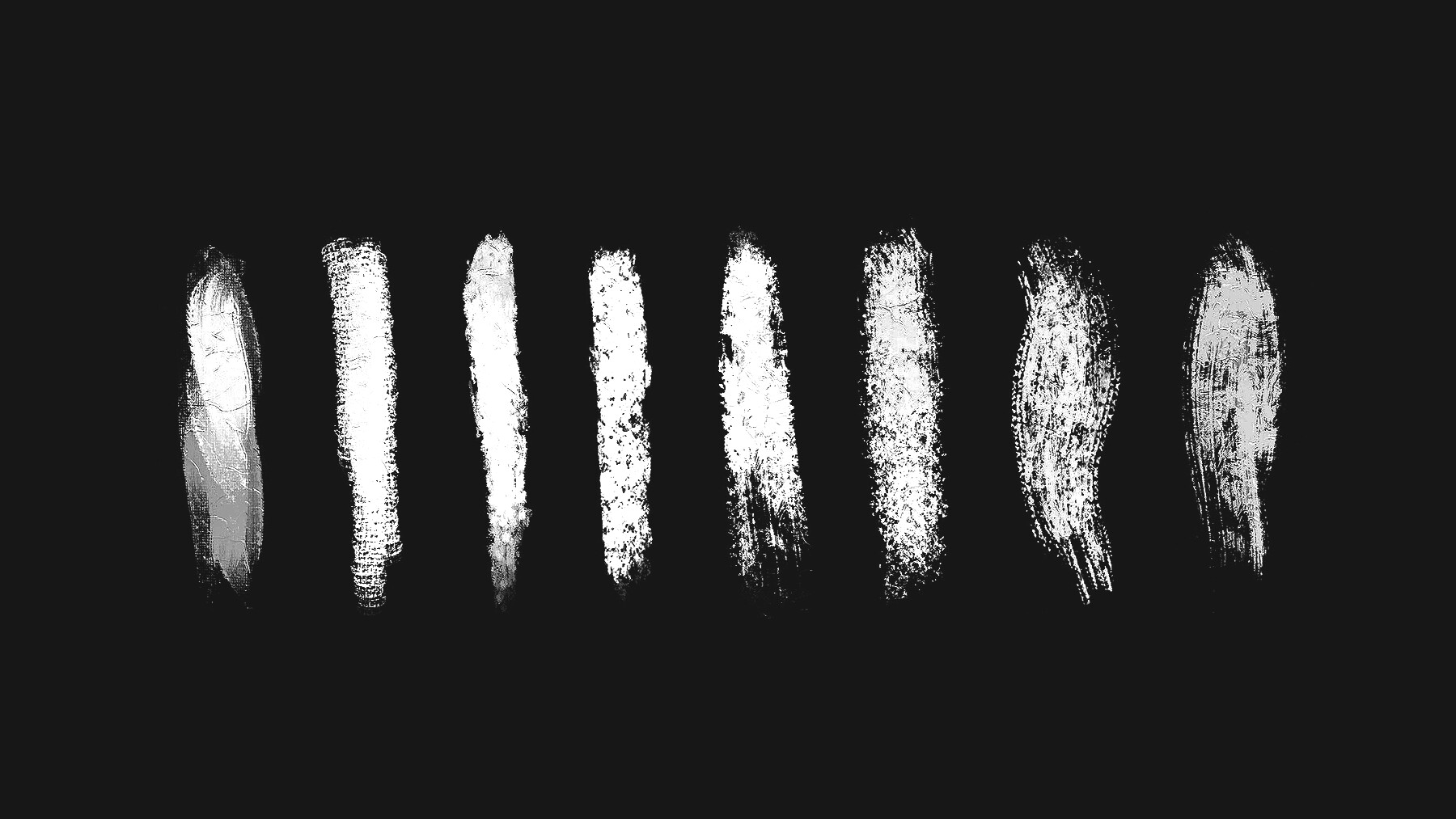

This 423+ Oil Paint Procreate Brushes are a must-have for any digital artist looking to create stunningly realistic oil paintings on their iPad. These brushes have been expertly crafted to mimic the natural textures and blending effects of real oil paint, giving artists the ability to produce lifelike oil paintings with all the convenience and flexibility of digital art.
Whether you're a professional artist, hobbyist, or student, the Procreate Oil Paint brushes are the perfect tool to add to your digital art arsenal. With a wide range of brush styles and textures to choose from, you can create anything from detailed portraits and landscapes to abstract works of art. These brushes are especially useful for artists who want to experiment with new techniques or emulate the look and feel of traditional oil painting without the mess and expense of real paint.
One of the key benefits of Procreate Oil Paint brushes is their ability to produce a wide range of textures and brush strokes, allowing you to create depth and dimension in your artwork. Whether you want to create smooth, flowing brushstrokes or rough, impasto-like textures, these brushes have you covered. They also offer a high degree of control and precision, allowing you to fine-tune your strokes and create intricate details in your artwork.
Procreate Oil Paint brushes are also very user-friendly, making them accessible to artists of all skill levels. They are easy to install and use, and come with a variety of settings and customization options that allow you to tailor the brushes to your specific needs. You can adjust the brush size, opacity, and flow, as well as experiment with different brush textures and styles to achieve the exact look you want.
In summary, Procreate Oil Paint brushes are an essential tool for anyone looking to create realistic and expressive oil paintings on their iPad. They offer a wide range of textures and brush strokes, as well as precise control and customization options, making them a versatile and user-friendly tool for artists of all levels. If you want to take your digital oil painting to the next level, the Procreate Oil Paint brushes are the perfect addition to your artistic toolkit.
Features of this set:
- Mimics real oil paint: The Procreate Oil Paint brushes are designed to mimic the texture and blending effects of real oil paint. This makes them a unique tool for digital artists who want to achieve the look and feel of traditional oil painting.
- Wide range of textures and styles: The Procreate Oil Paint brushes offer a wide range of textures and brush styles that can be customized to suit the needs of any artist. This means that you can create anything from smooth, flowing brushstrokes to rough, impasto-like textures with ease.
- High level of control: The Procreate Oil Paint brushes offer a high degree of control, allowing artists to fine-tune their strokes and create intricate details in their artwork. This makes them a powerful tool for creating realistic and expressive oil paintings on the iPad.
- User-friendly: The Procreate Oil Paint brushes are designed to be user-friendly, making them accessible to artists of all skill levels. They are easy to install and use, and come with a variety of settings and customization options that allow you to tailor the brushes to your specific needs.
- Exclusive to your store: Unlike regular Procreate brushes that can be found on any other online store, these Procreate Oil Paint brushes are custom-made and exclusive to your store. This means that customers won't be able to find them anywhere else, making them a unique and special addition to your digital art toolkit.
How to install your premium Procreate brush sets:
- Download a selection of different brushes from Dioeye Store. Custom brushes are often available in the form of a .brush or .brushset file.
- Open Procreate and go to the Actions menu, located in the top-right corner of the screen.
- Tap on the "Import" option.
- Select the brush set file you just downloaded.
- The brush set will be imported into Procreate and will be available for use in the Brushes panel.
- To access the newly imported brushes, tap on the Brushes panel, located in the top-right corner of the screen.
- Tap on the brush set you just imported and select the brush you want to use.
Here is some related Products:
- 565+ Watercolor Procreate Brushes
- 60+ Crayon, Chalk, Pastel, Oil Procreate Brushes
- 200+ Graffiti Spray, Street Art Procreate Brushes
- 1025+ Geometry and Pattern Procreate Brushes
- 485+ Ink, Calligraphy & Marker Pen Procreate Brushes
- 950+ Textures Procreate Brushes
- 250+ Charcoal Pencil Procreate Brushes
If you still have questions, just send me a message to dioeye@gmail.com and I’m happy to help.
CATEGORIES
Special Offer! Get 10% off when you buy 2 products. Get 15% off when you buy 3 or more products. Applies to all products from this seller only from USD $1.00 to USD $100.00
Freelance & Personal Use License
USD $5.00
License: Standard License
Stock Assets
For personal use and one commercial project (up to 2,000 sales or 20,000 views).
TutorialsOne copy to be used by a single user.
Installable ToolsOne installation by a single user.
Learn MoreFor one user only. Commercial and personal use. Read MoreRead Less
Files (1)
Indie License (5 Users)
USD $57.00
License: Extended Commercial License
Stock Assets
For use on an unlimited number of commercial projects with no limits on sales or views.
Learn MoreFor small Studios with 5 users only. Commercial and personal use. Read MoreRead Less
Files (1)
Studio License (10+ Users)
USD $85.00
License: Extended Commercial License
Stock Assets
For use on an unlimited number of commercial projects with no limits on sales or views.
Learn MoreFor larger Studios with more than 10 users. Commercial and personal use. Read MoreRead Less
Files (1)
Studio Plus License (100- Users)
USD $214.00
License: Extended Commercial License
Stock Assets
For use on an unlimited number of commercial projects with no limits on sales or views.
Learn MoreFor art institutions and studios under 100 users. Commercial and personal use. Read MoreRead Less
Files (1)
https://artstn.co/m/qV83e
Copied
More by Kumaran Handy

Add a tip for Kumaran Handy
Tips are appreciated, but optional!