
 Sign Up with Epic Games
ModularKit Grid Snapping & Socket Kit Builder

in Resources


ModularKit — Grid Snapping & Socket Kit BuilderDescription
ModularKit turns ordinary meshes into snap-ready modular kit pieces — the walls, floors, corners, and props used in grayboxing and level design for Unreal, Unity, or any grid-based environment pipeline.
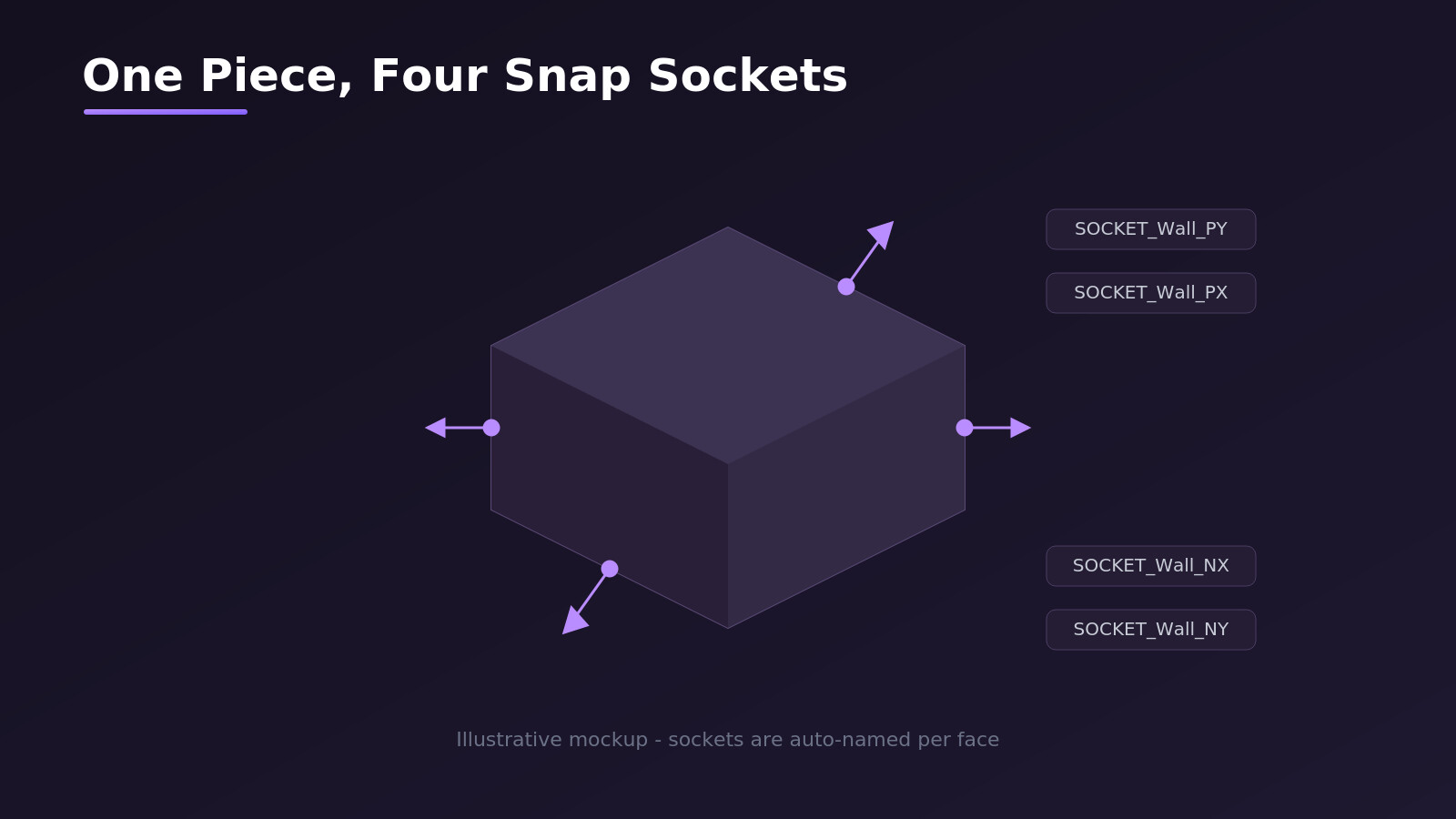
Instead of manually eyeballing alignment, nudging pivots, and hoping two pieces actually line up, ModularKit gives every piece a consistent pivot placement, validates that its dimensions cleanly divide into your grid size, and generates snap sockets — small oriented markers on each face — so two pieces can be locked together with one click, guaranteed to meet flush.
How to Install- Blender → Edit → Preferences → Add-ons → Install...
- Select modularkit.py
- Enable the checkbox next to "ModularKit"
- Open the 3D Viewport sidebar (press N) → find the ModularKit tab
1. Set your grid sizeIn the ModularKit panel, set Grid Size (e.g. 1.0 for a 1m/100cm grid) and Tolerance (how far off a dimension can be before it's flagged).
2. Fix the pivot on each pieceSelect a piece, choose a Pivot Placement mode:
- Base Center — bottom face center (standard for walls/floors so they sit flush on the ground)
- Bounding Box Center — for props that need to rotate freely
- Corner — for tiling grid pieces
Click Set Pivot (per Mode).
3. Snap it to the gridClick Snap Pivot to Grid — moves the object's origin to the nearest grid point in world space.
4. Validate the sizeClick Validate Module Sizes — checks that width/depth/height are clean multiples of your grid size. Any mismatches print to the System Console (Window → Toggle System Console on Windows, or your terminal on Mac/Linux).
5. Generate socketsSelect the piece, click Generate Snap Sockets. This adds small axis-empty objects named SOCKET_<PieceName>_PX, _NX, _PY, _NY (and _PZ/_NZ if you enable All 6 Faces) at the center of each face, oriented to point outward.
6. Snap two pieces together
- Select the socket on the piece you want to move
- Ctrl-click the socket on the target piece (making it active)
- Click Snap Piece to Socket
The moving piece's parent object jumps so the two sockets meet face-to-face, correctly flipped to connect — no manual rotation guesswork.
CATEGORIES
Standard Use License
USD $25.99
License: Standard License
Stock Assets
For personal use and one commercial project (up to 2,000 sales or 20,000 views).
TutorialsOne copy to be used by a single user.
Installable ToolsOne installation by a single user.
Learn MoreFiles (1)
https://artstn.co/m/dLg1B
Copied
More by Mansour Mahmoud Amir


Add a tip for Mansour Mahmoud Amir
Tips are appreciated, but optional!
