
 Sign Up with Epic Games



Overview
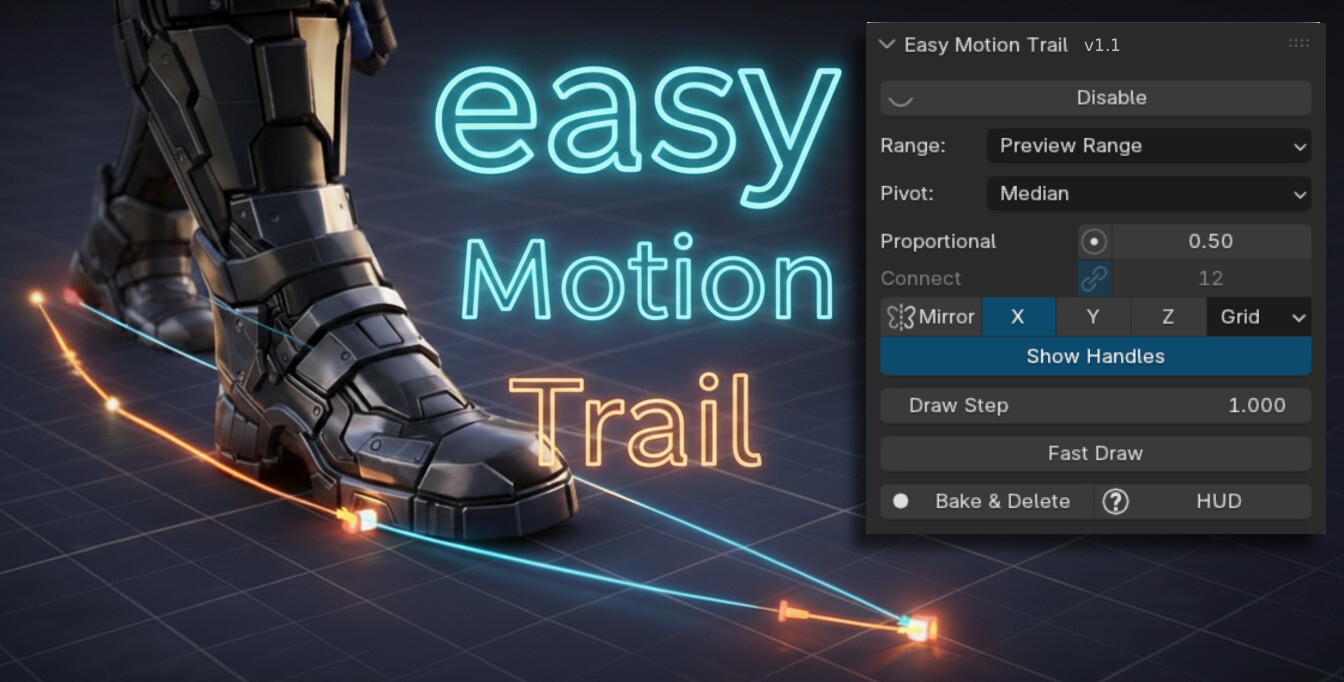
Easy Motion Trail is a Blender add-on that allows real-time editing and visualization of motion paths for objects and armature bones directly in the viewport. It is designed for complex rigs, including IK- and constraint-driven systems, and works reliably in both Blender 4.x and 5.x.
Key Features- Real-time motion trail for objects and bones
- Works with constrained, parented, and IK-driven bones
- Viewport-based editing
- Live update while moving with G key Rotate or Scale easily
- Frame-accurate key insertion
- Safe editing on existing animations (no new action/slot creation)
- Optimized for dense rigs (face rigs, complex characters)
- Lock selection object to focus a bone or mesh object
Attention : The addon will not be active if there are NLA clips. This is because it searches for keyframes in the action clip file and operates accordingly. You must bake the NLA clips first.
Installation1. Open Blender
2. Go to Edit > Preferences > Add-ons (or Extensions in Blender 5.0)
3. Click Install from Disk
4. Select the Easy Motion Trail ZIP package
5. Enable the add-on
Enable Motion Trail
Select an object or a bone (in Pose Mode) and press Alt + M to enable the motion trail. The trail is created from the existing animation and does not generate new actions or slots.
Disable Motion Trail
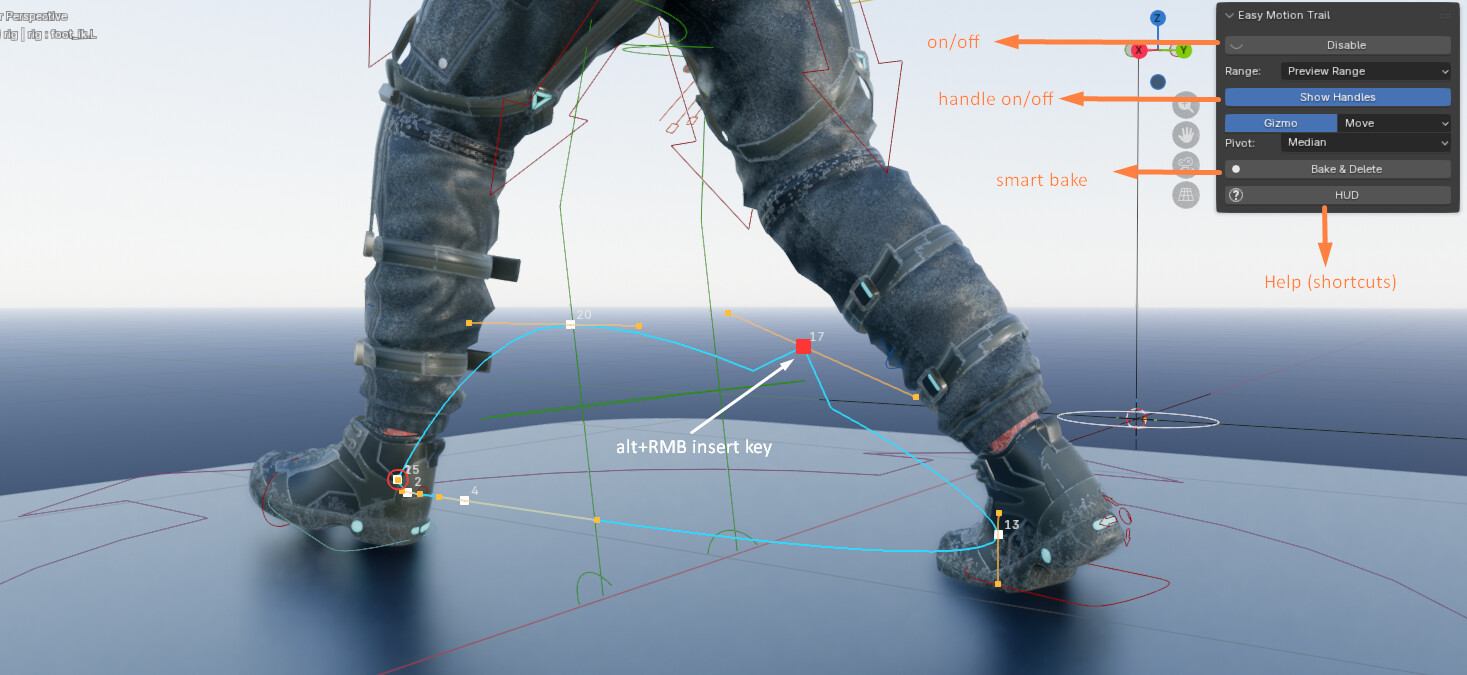
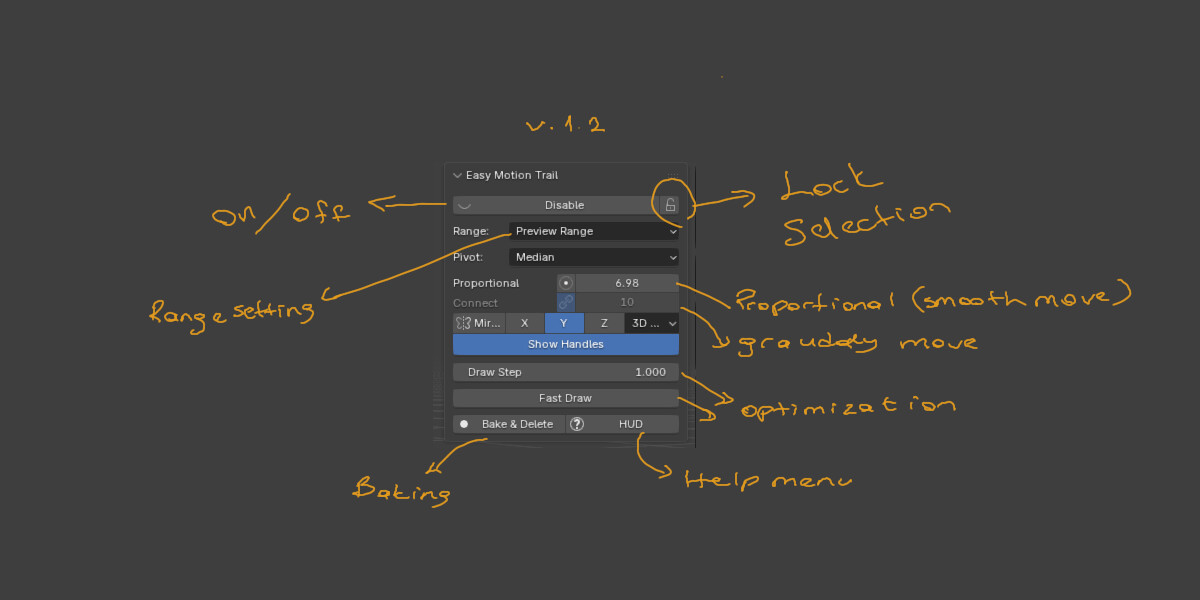
Use the Disable button in the N Panel to turn off the motion trail visualization.
Object Motion TrailWhen an object is selected, the motion trail represents the object’s animated world-space position. Moving the object with G updates the trail live in the viewport.
Bone Motion TrailIn Pose Mode, selecting a bone and enabling the motion trail displays the true evaluated motion path of that bone. This includes parent offsets, constraints, and IK chains. The trail always matches what is visible in the viewport.
Editing the Motion TrailSelecting Points
Use Left Click to select trail points. Box selection (B) can be used for selecting multiple points.
Moving Points
Selected points can be moved using G . The motion trail updates live during dragging.
Rotating and Scaling
Use R to rotate selected points. Press R twice to enter Trackball rotation mode. Use S to scale selected points.
Keyframe OperationsInsert Keyframe
Alt + Right Mouse Button inserts a new keyframe between two existing points. The key is snapped to the nearest integer frame.
Delete Keyframe
Alt + Right Mouse Button or X key on a trail point deletes the corresponding keyframe.
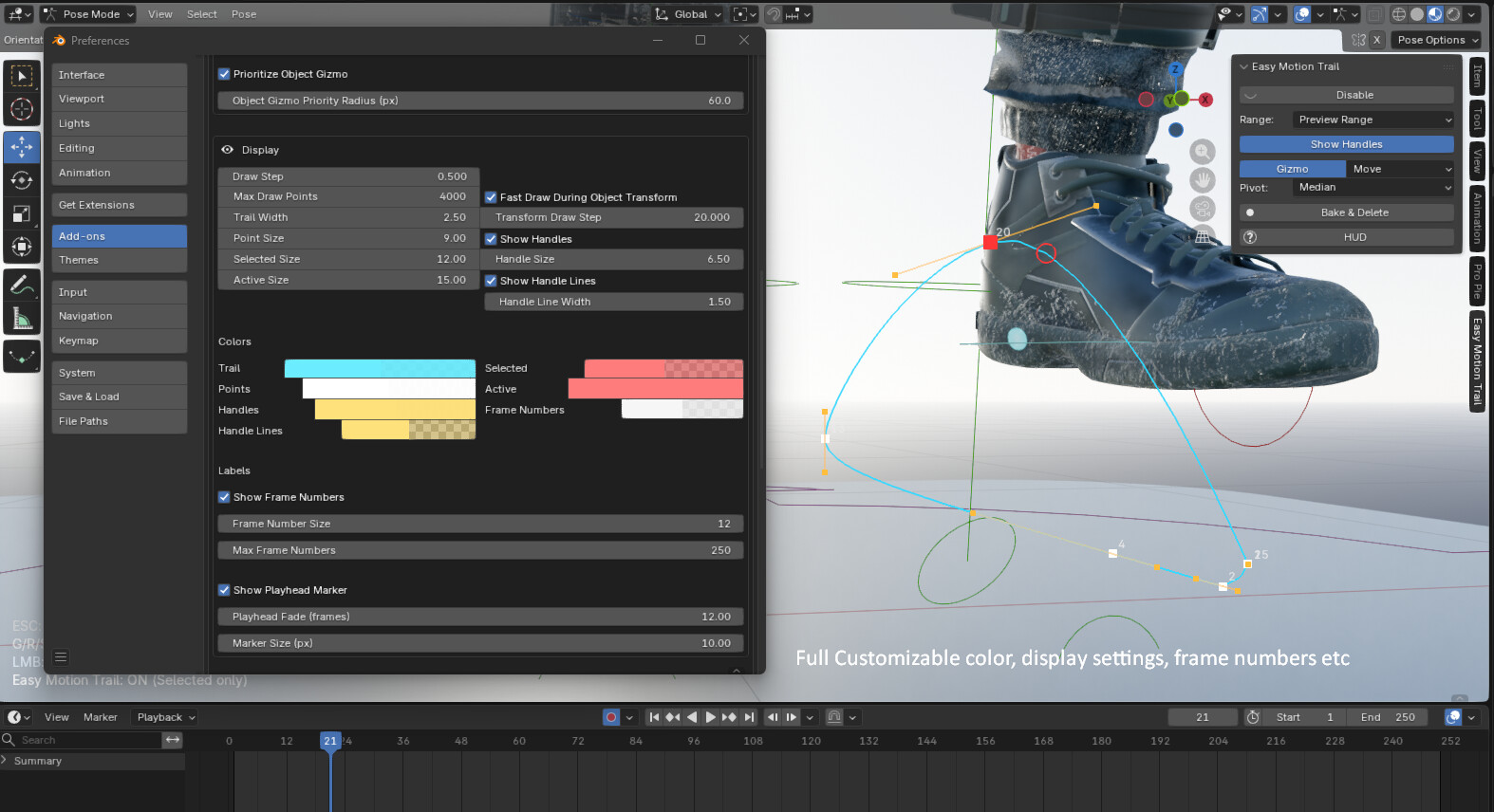
Playhead VisualizationThe current frame position is visualized on the motion trail using a circular marker. The trail fades gradually before and after the playhead position, making it easier to understand timing and motion flow.
Performance and StabilityEasy Motion Trail is optimized for heavy rigs. During transforms, only minimal cache updates are performed. After releasing the transform, a safe deferred rebuild ensures accuracy without blocking the UI.
Known Limitations- Motion trails rely on existing animation data; no keys are created automatically.
- Editing is applied to the currently active action/slot.
- If you delete your object on the viewport and ctrl+z back again, you must disable motion trail and enable again to use it.
- Extremely complex constraint setups may require slight delays for cache rebuild. Please use "Custom Range" for it.
- Files saved in older versions of Blender may not provide correct answers when opened in newer versions of Blender.
Use this method : Disable Addon > Custom Range > Disable Handles > Draw Step : 3 > Fast Draw 4> Enable Addon.
LicenseEasy Motion Trail is released under the GNU General Public License v3 (GPL-3.0).
CATEGORIES
Standard Use License
USD $15.00
License: Standard License
Stock Assets
For personal use and one commercial project (up to 2,000 sales or 20,000 views).
TutorialsOne copy to be used by a single user.
Installable ToolsOne installation by a single user.
Learn MoreFiles (1)
https://artstn.co/m/WjyjG
Copied
More by Zekeriya Ayan

Add a tip for Zekeriya Ayan
Tips are appreciated, but optional!
