
 Sign Up with Epic Games



how to use -
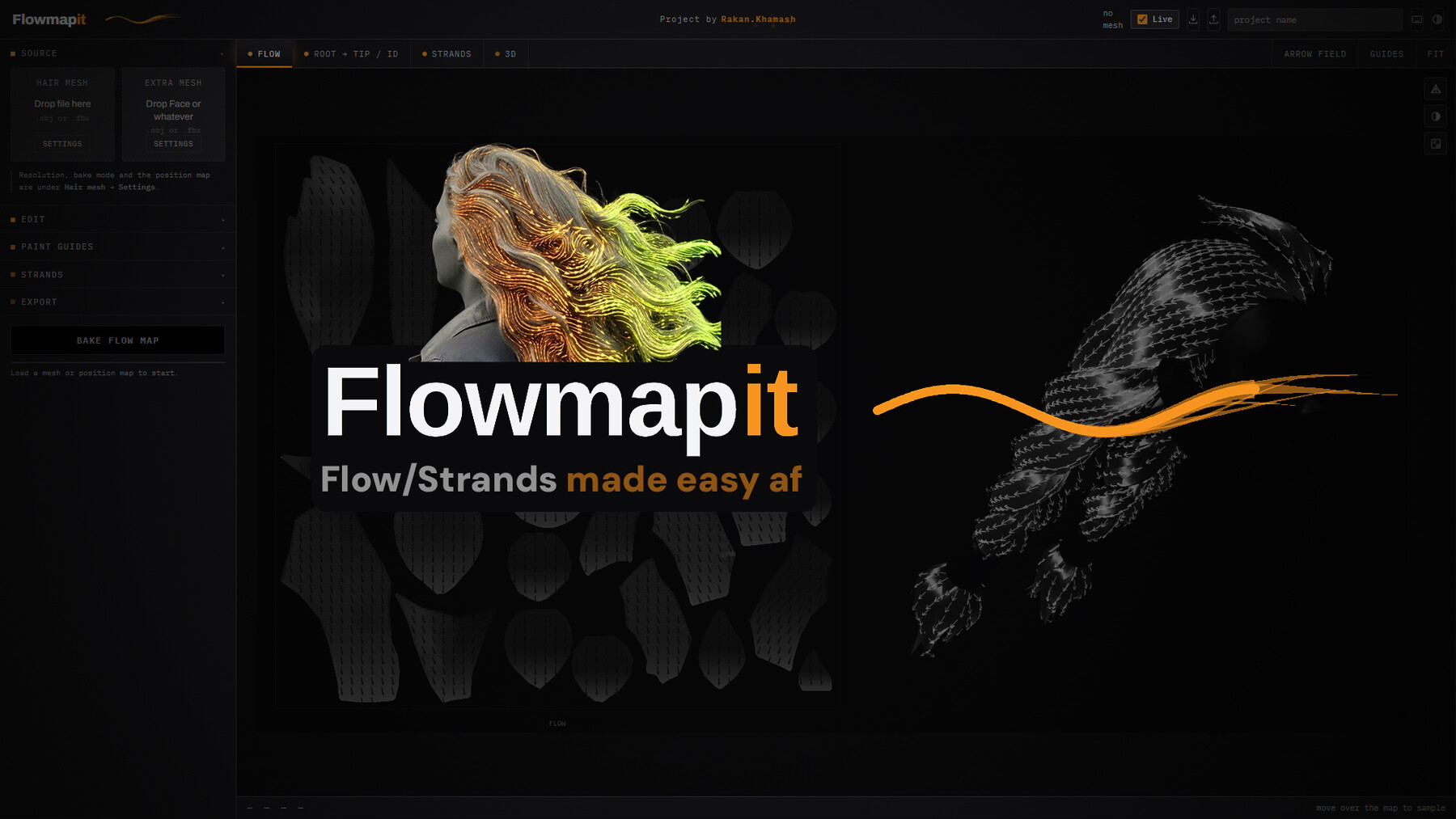
open the Flowmapit.HTML = done
Web-based tool ( no install or anything like that )
FLOWMAPIT - HOW TO USE
1. LOAD YOUR MESH
Drop your hair mesh (.obj or .fbx) into the "Hair mesh" box.
It needs a UV layout - that's what defines your cards.
2. BAKE
Hit "Bake flow map" at the bottom. That's it - you'll get a working
flow map straight away, root pinned to tip, solved per card.
If you want more control, open EDIT to change:
- which UV axis is root→tip
- how the root end is detected
- the encoding (tangent/object space, channel packing, etc.)
3. FIX DIRECTIONS (optional)
Go to the FLOW tab → GUIDES, then PAINT GUIDES panel:
- Normal guide: drag a line down one card, root to tip.
Bends the flow inside that card to follow your stroke.
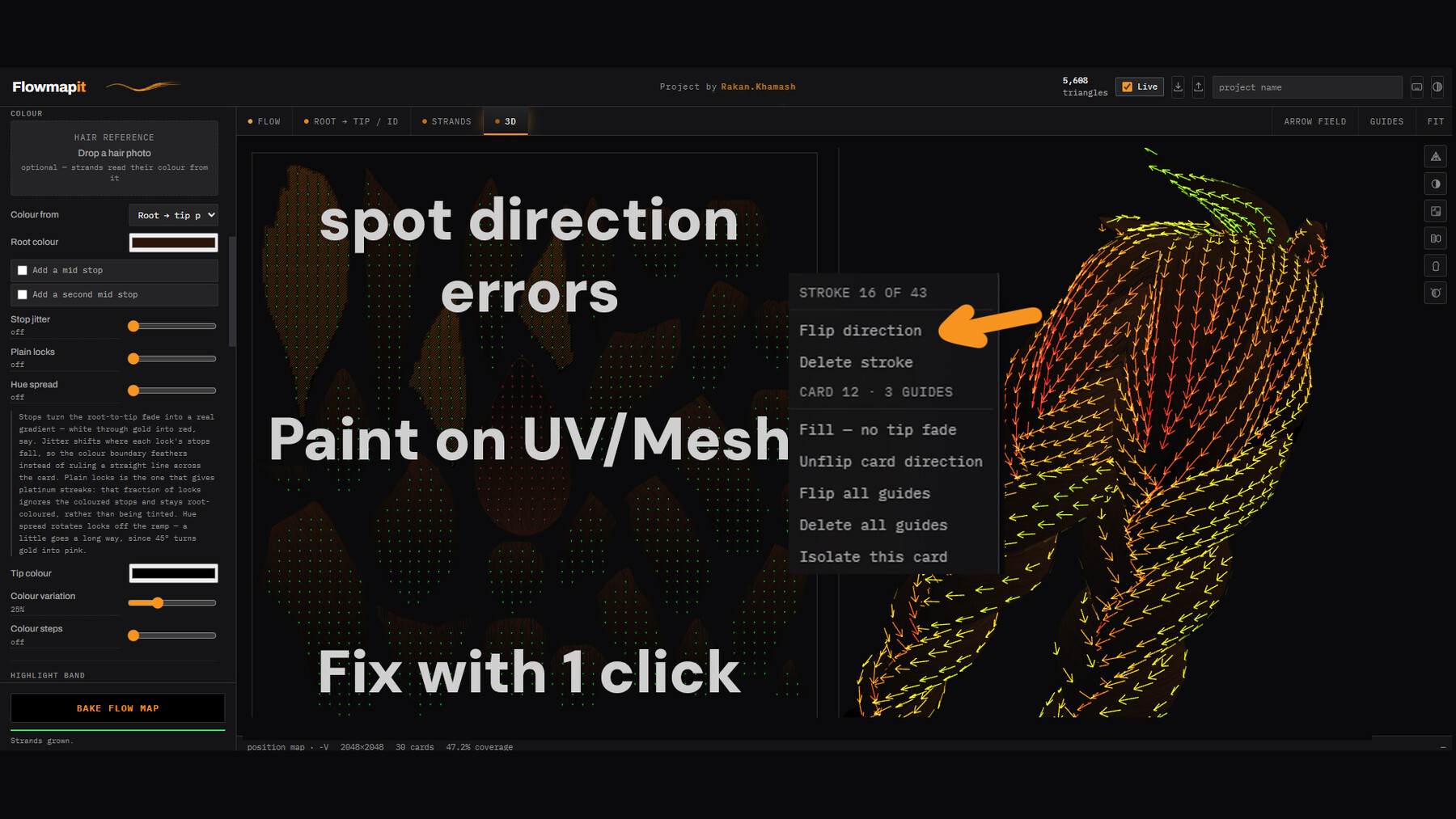
- Mega guide: switch modes, then drag across several cards.
Instead of bending the field, it flips whole cards that are
running the wrong way - great for fixing clumps of reversed
cards in one go. Adjust the radius to grow/shrink how many
neighbouring cards it catches. Click "Remove MEGA guide" when
you're done with it - it doesn't clear itself.
Tip: drag directly on the 3D mesh (3D tab) for guides — it
snaps to the surface and carries across seams properly.
4. STRANDS (optional)
Open the STRANDS panel to generate strand textures on top of the
flow map - density, thickness, cross-section shape, color, the
works. Nothing here touches the flow map itself.
5. EXPORT
Open EXPORT, click the maps you want (flow, root→tip/ID, strands),
hit "Save selected maps." Done.
Want to keep working on this later? Use the save/load icons next
to "Live" in the header - that saves your whole project (mesh,
strokes, settings, theme) as one file.
A FEW THINGS WORTH KNOWING
---------------------------
- "Live" (top right) re-bakes automatically when you change a
setting. Turn it off if you're tweaking a lot of sliders and don't
want it re-baking on every single change.
- ` (backtick) isolates whichever card is under your cursor - handy
in a crowded atlas. Press it again to show everything.
- F frames whatever's currently in focus (an isolated card, a
selected stroke, or everything).
- Arrow field colors: green = running the direction you'd expect,
red = running the opposite way. Use it to spot cards that need
fixing at a glance.
That's the whole workflow. Everything else in the panels is there
to fine-tune the result once the basics are working.
—
Flowmapit, generated by Rakan Khamash using AI-generated code.
artstation.com/rakan
CATEGORIES
ADDITIONAL INFORMATION
Standard Use License
Free
License: Standard License
Stock Assets
For personal use and one commercial project (up to 2,000 sales or 20,000 views).
TutorialsOne copy to be used by a single user.
Installable ToolsOne installation by a single user.
Learn MoreFiles (2)
https://artstn.co/m/OmpxB
Copied

Add a tip for Rakan Khamash
Tips are appreciated, but optional!
