
 Sign Up with Epic Games
Bridge Vertex Pro — Smart G0/G1/G2 Spline Bridge for Fusion 360

in Resources


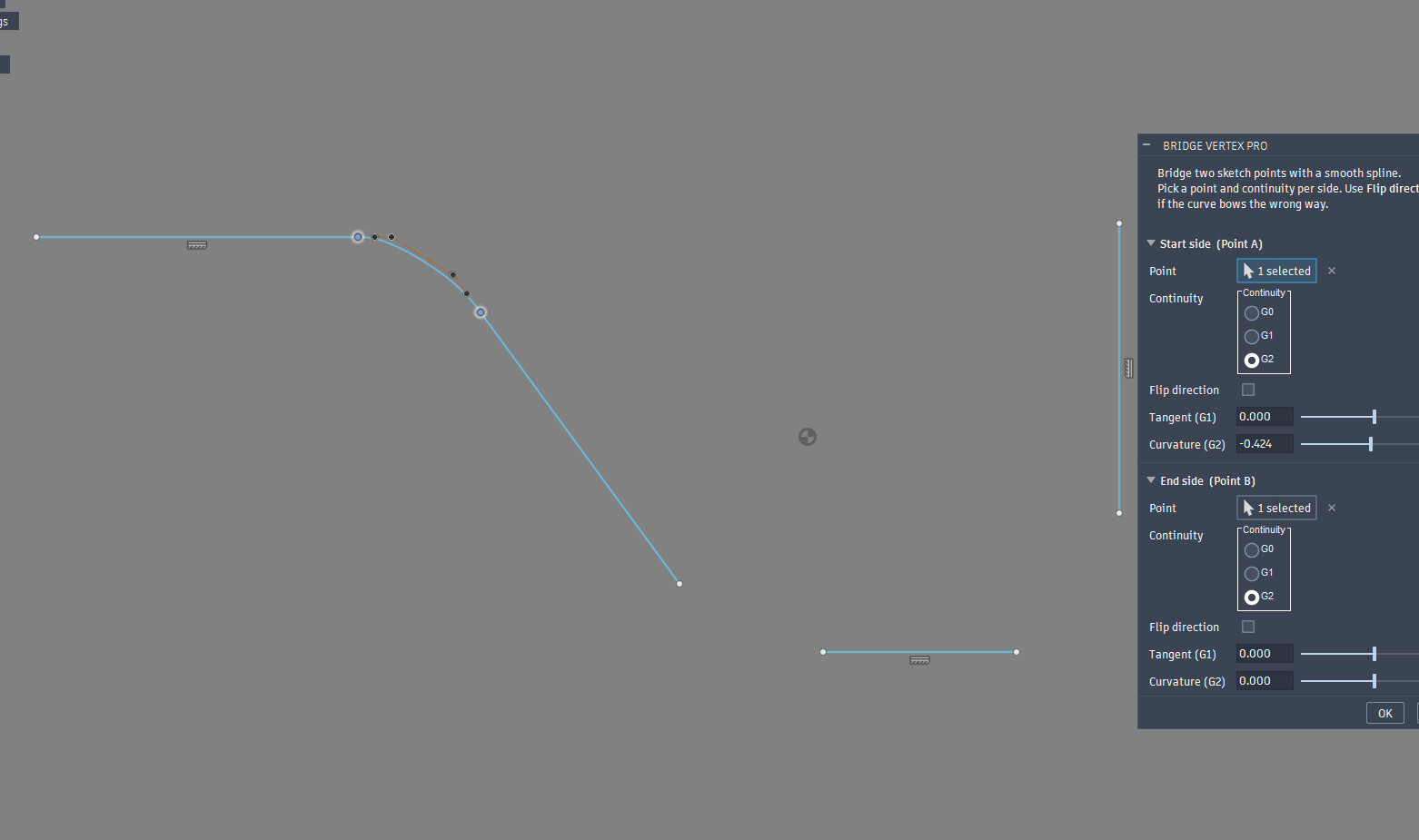


Bridge Vertex Pro — Spline Bridge for Fusion 360
Description
Bridge Vertex Pro is a Fusion 360 add-in that connects any two sketch points with a clean, fully-controlled spline — with independent G0 / G1 / G2 continuity on each side. Stop fighting manual spline handles: pick two points, choose how each end should blend, and get a smooth, production-ready curve in one click.
Key features
- Per-side continuity — set G0 (position), G1 (tangent match) or G2 (curvature match) independently for the start and the end.
- Smart auto-handles — optimal tangent-handle lengths are computed from a circular-arc Bézier model, so the default curve already looks right.
- Tension control — fine-tune tangent (G1) and curvature (G2) strength per side with signed sliders. 0 = automatic.
- Flip direction — reverse the curve direction on either side with a single checkbox when it bows the wrong way.
- Picks up your selection — pre-select two points before launching and they're filled in automatically.
- Lives where you work — adds a button to the Sketch → Modify panel, supports keyboard shortcuts and live preview.
- Sticky settings keep your last configuration during the session.
- Works on Windows and macOS.
Free & supported by you
Bridge Vertex Pro is completely free — the full tool, no feature limits. If it speeds up your workflow and you'd like to back future updates and new Fusion 360 tools, a "Support the Developer ☕" option is available at checkout. Totally optional, hugely appreciated.
Installation
- Unzip the BridgeVertexPro folder into your Fusion add-ins folder:
%appdata%\Autodesk\Autodesk Fusion 360\API\AddIns\ (Windows) or ~/Library/Application Support/Autodesk/Autodesk Fusion 360/API/AddIns/ (macOS). - In Fusion: Utilities → Add-Ins → Scripts and Add-Ins (Shift+S).
- Select Bridge Vertex Pro, enable Run on Startup, then Run.
- Find the command in the Sketch → Modify panel.
How to use
Open a sketch, (optionally) pre-select your two points, launch the command, set continuity and tension for each side, and click OK. Done.
AI disclosure
This add-in's code and icons were developed with the assistance of AI tools (Anthropic Claude). All geometry logic was reviewed and tested by the author.
CATEGORIES
Free Download
Free
License: Standard License
Stock Assets
For personal use and one commercial project (up to 2,000 sales or 20,000 views).
TutorialsOne copy to be used by a single user.
Installable ToolsOne installation by a single user.
Learn MoreThe complete add-in, free for everyone. Includes the full BridgeVertexPro add-in (Windows & macOS), custom icons and install instructions. No feature limits — this is the whole tool.
If it saves you time and you'd like to support development, there's a "Support the Developer" option as well. Either way, enjoy and happy modeling! Read MoreRead Less
Files (1)
Support the Developer
USD $5.00
License: Standard License
Stock Assets
For personal use and one commercial project (up to 2,000 sales or 20,000 views).
TutorialsOne copy to be used by a single user.
Installable ToolsOne installation by a single user.
Learn MoreExactly the same files as the free version — this option is simply a way to say thank you and support future updates and new Fusion 360 tools. No extra content; your support keeps the work going. Much appreciated! Read MoreRead Less
Files (1)
https://artstn.co/m/ab65q
Copied
More by Oleksii Andrusevych


Add a tip for Oleksii Andrusevych
Tips are appreciated, but optional!
