Sign Up with Epic Games




You can move objects in Blender. But can you move them exactly where you want, every time?
Most beginners learn to drag things around quickly. Precise, predictable transforms are a different skill - and the gap between the two is larger than it appears. Objects rotate around the wrong point. Scale breaks the Mirror Modifier. Things jump to unexpected positions. The tools look straightforward, but there is a complete system underneath them involving origins, pivot points, orientations, and applied transforms.
This 17-lesson course teaches that system from the ground up - so transforms stop feeling unpredictable and start feeling like a precision instrument you fully control.
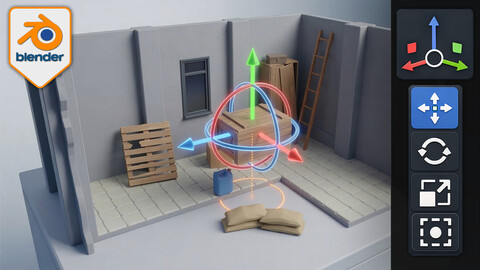
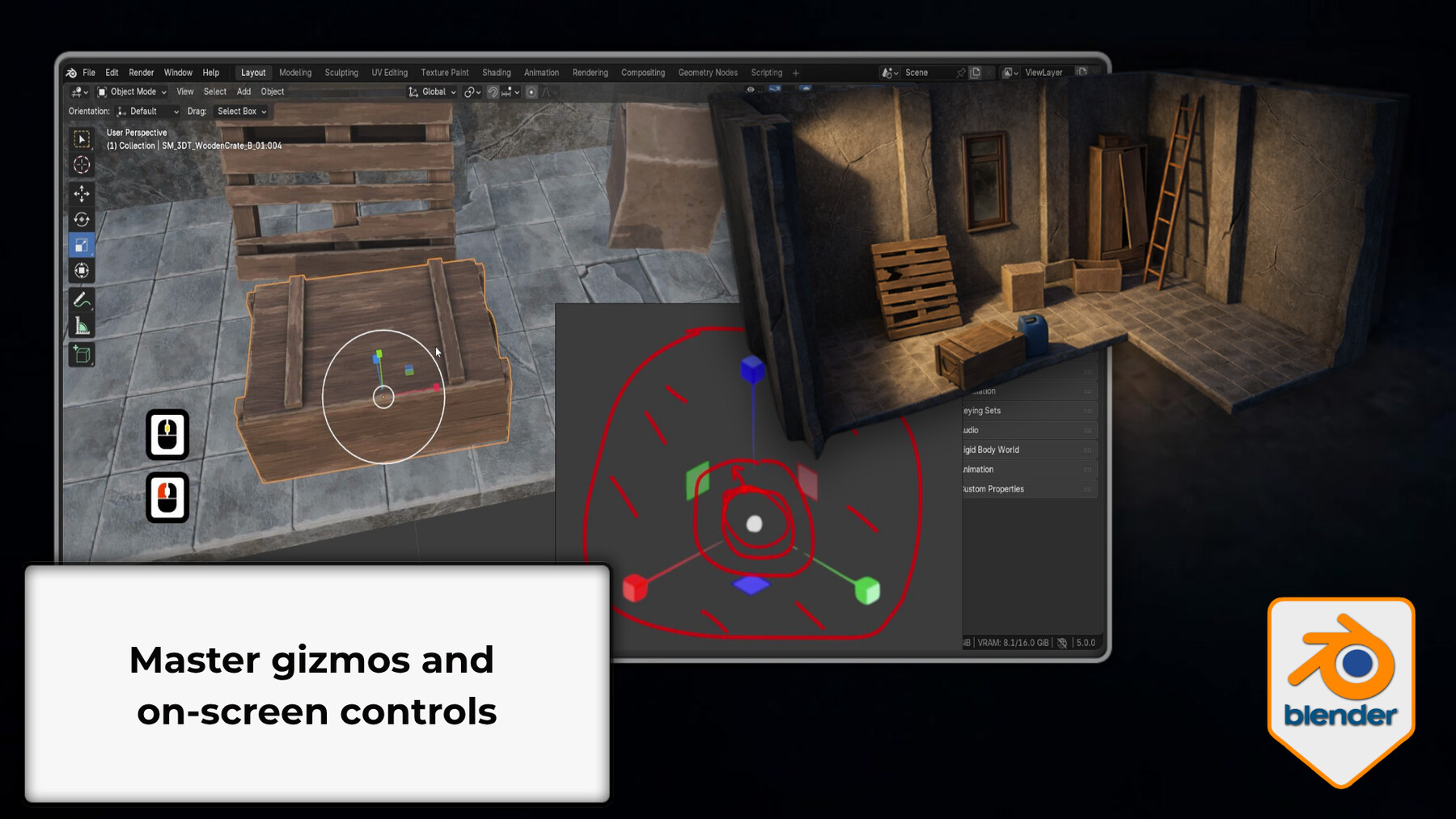
Move, Rotate, and Scale toolbar tools, on-screen gizmo handles, axis constraints (X/Y/Z), plane locks (Shift+X/Y/Z), view-locked transforms, and the combined Transform gizmo.
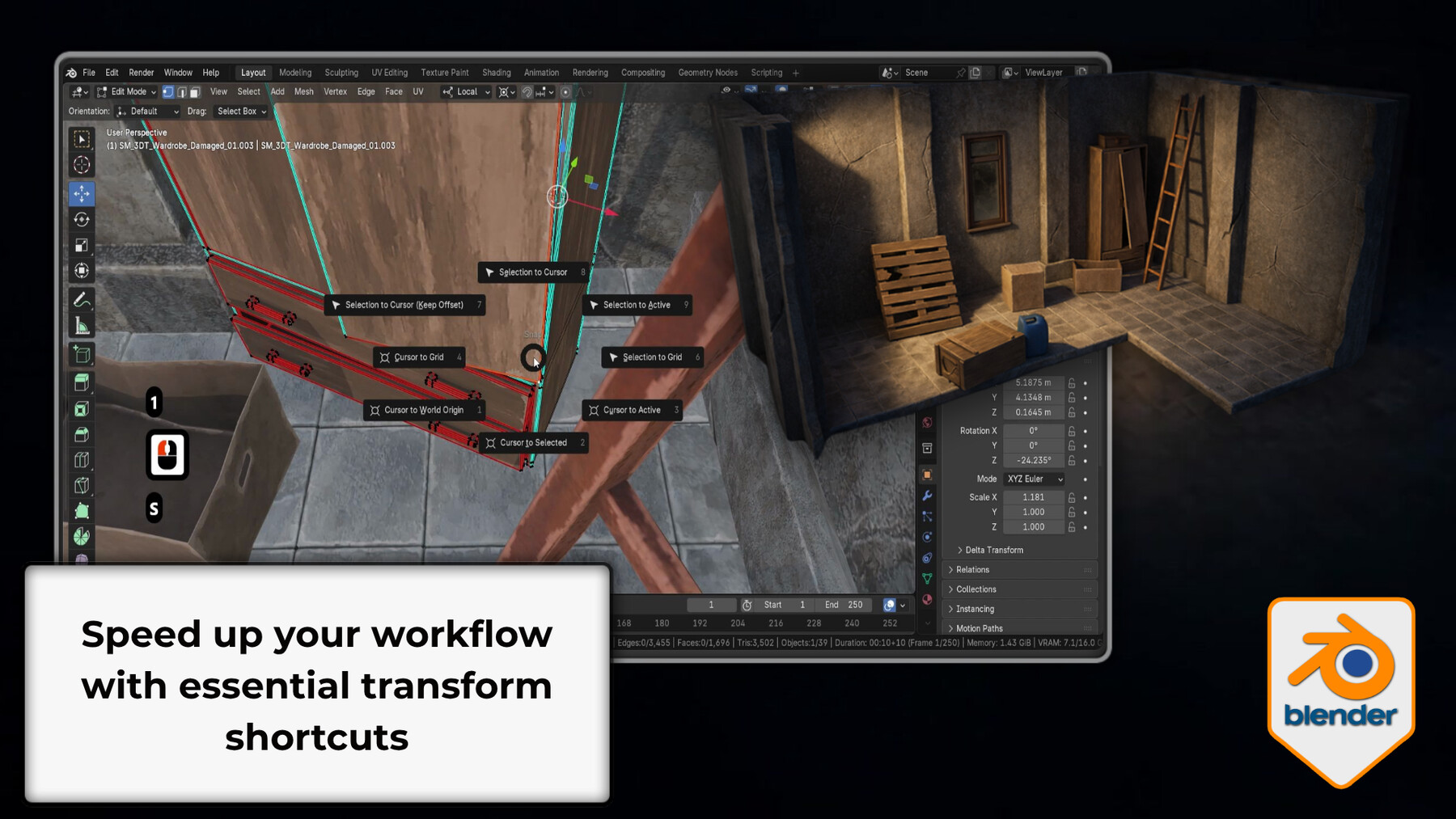
G/R/S shortcut workflowAxis locking, double-tap for local axis, numeric input (G X 2 Enter), trackball rotation, Shift for fine control, Alt+G/R/S to reset. The full shortcut system for working at speed.
Object originsWhat the orange dot is, how every rotation and scale operation is relative to it, and how to set it correctly: Origin to Geometry, Geometry to Origin, Origin to 3D Cursor, Origin to Center of Mass, and Affect Only Origins mode.
Scale vs Dimensions and Ctrl+A Apply TransformsThe difference between Scale and Dimensions values, when Dimensions is more useful for real-world sizing, what Ctrl+A Apply Transforms does to object data, and why it's essential for modular assets, Mirror Modifiers, and clean exports.
All seven Transform OrientationsGlobal, Local, Normal, Cursor, View, Gimbal, and Parent - with clear use cases for each, plus creating a custom orientation from any face or edge to fix Mirror Modifier rotation issues.
Transform Pivot PointsMedian, Bounding Box Center, Individual Origins, 3D Cursor, and Active Element - what each one changes and when each one is the right choice.
Item panel exact valuesEntering and reading exact Location, Rotation, and Scale values in world space and local space via the N panel.
TroubleshootingDiagnosing and fixing the five most common transform problems: offset origins, negative scale, broken Mirror Modifier, parenting mismatches, and custom orientation fixes.
- Move, rotate, and scale with exact axis constraints, plane locks, and numeric input
- Set object origins correctly for predictable rotation, scaling, and modifier behaviour
- Switch between all seven transform orientations with understanding of when each applies
- Choose the right pivot point for every operation
- Use G/R/S shortcuts at full speed
- Apply transforms with Ctrl+A and understand what it does and why it matters
- Diagnose and fix the most common transform problems
- Beginners who can navigate Blender but struggle with precise, controlled placement
- Self-taught artists who've developed quiet gaps around origins and orientations
- Aspiring game and environment artists who need transform-correct, export-ready assets
- Anyone who's had Blender rotate around the wrong point and never fully understood why
Getting transforms right is the foundation for clean modelling, correct modifier behaviour, and assets that export properly. This course builds that foundation from the ground up - so every tool you learn after this behaves the way you expect it to.
Free practice asset pack included - a post-apocalyptic modular kit for working on real assets throughout the lessons.
Blender 5 compatible. Basic navigation recommended before starting - Course 1 of this series covers it.
This is Course 2 of the Blender Essentials for Beginners series. Course 3 - Snapping and Alignment Basics - builds directly on the transform skills established here.
Happy modelling everyone!
Neil - 3D Tudor
Release Notes
- Fixed File Structure
CATEGORIES
Special Offer! Get 20% off when you buy 2 products. Get 35% off when you buy 3 or more products. Applies to all products from this seller only from USD $1.00 to USD $100.00
Standard Use License
USD $9.99
License: Standard License
Stock Assets
For personal use and one commercial project (up to 2,000 sales or 20,000 views).
TutorialsOne copy to be used by a single user.
Installable ToolsOne installation by a single user.
Learn MoreFiles (3)
https://artstn.co/m/dLq20
Copied
More by 3D Tudor

Add a tip for 3D Tudor
Tips are appreciated, but optional!