Sign Up with Epic Games
Blender Viewport Navigation - Complete Beginner Course (11 Lessons, Blender 5)

in Tutorials



If you've been "getting by" with Blender navigation, this will change how fast you work.
Viewport navigation is the one skill that touches every single Blender session. Bad habits - orbiting awkwardly, losing your angle, not knowing how to snap to a precise axis view, fighting to get back to the object you were working on - quietly cost you time on every single project. Most tutorials never explain it properly. They just assume you already know.
This course is the dedicated fix: a complete, properly sequenced deep-dive into every way Blender lets you navigate 3D space. Every control is explained in context - what it does, why it exists, when you'd actually reach for it, and how it connects to everything around it.
What the 11 lessons cover
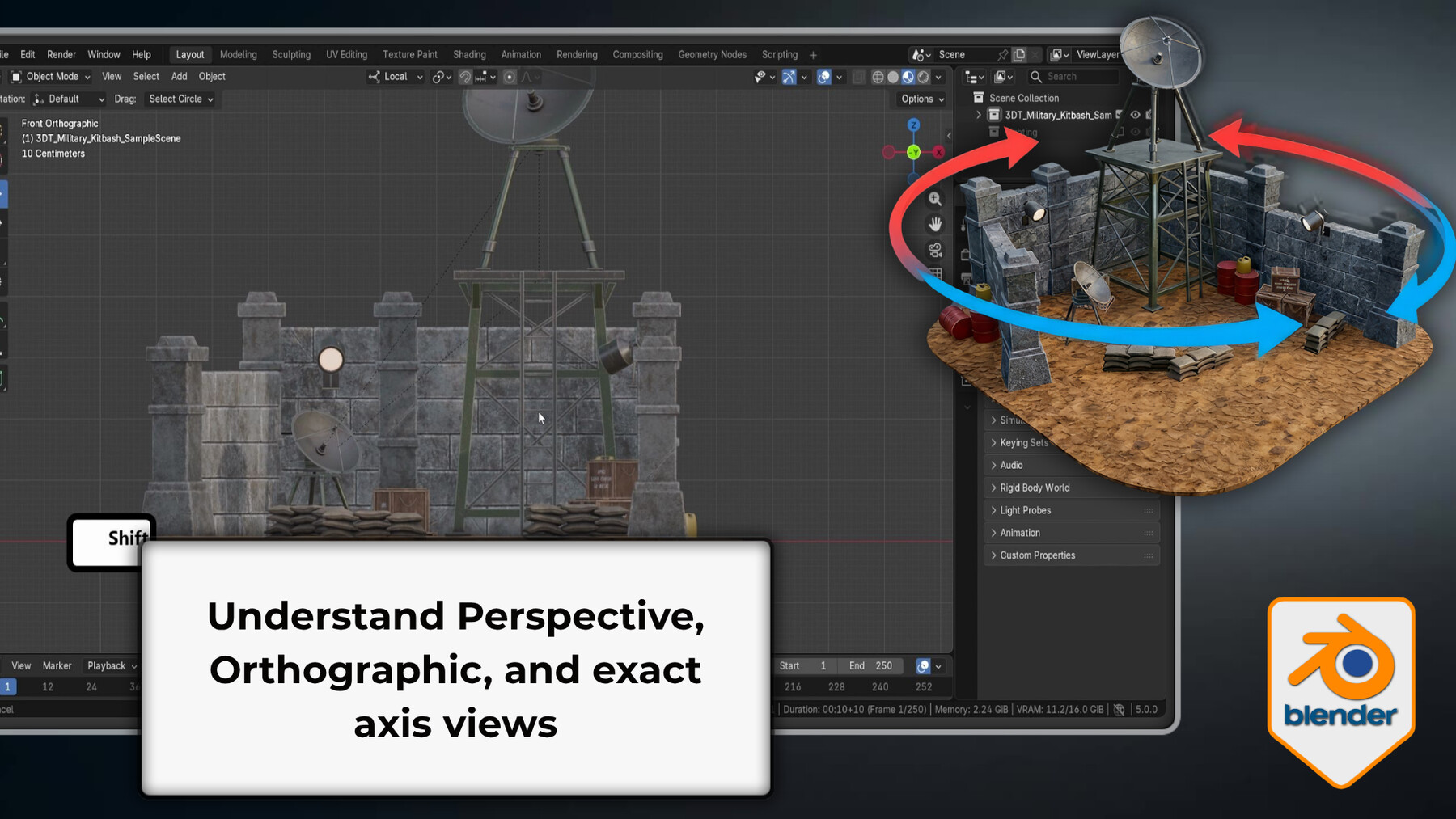
Gizmo and view identification
The on-screen axis gizmo in the top-right corner, how to click any axis to snap to that view, the hollow sphere for negative-axis views, and the Perspective vs Orthographic toggle that affects how you see depth in your scene.
Mouse shortcut navigation
MMB orbit, Shift+MMB pan, Ctrl+MMB and scroll to zoom, Alt+MMB to snap to the nearest standard orthographic axis. The core controls you'll use every session - they need to be automatic.
Fly Mode
Activate with Shift+`, move with WASD, go up/down with Q/E, teleport to any aimed surface with Space, control speed with Shift/Alt/Numpad +/-, and level a tilted camera with Z-axis correction.
Walk Mode with gravity
Drop from Fly Mode into Walk Mode with Tab, traverse surfaces with gravity applied, jump with V, adjust height with . and ,, and evaluate scene scale from actual ground level.
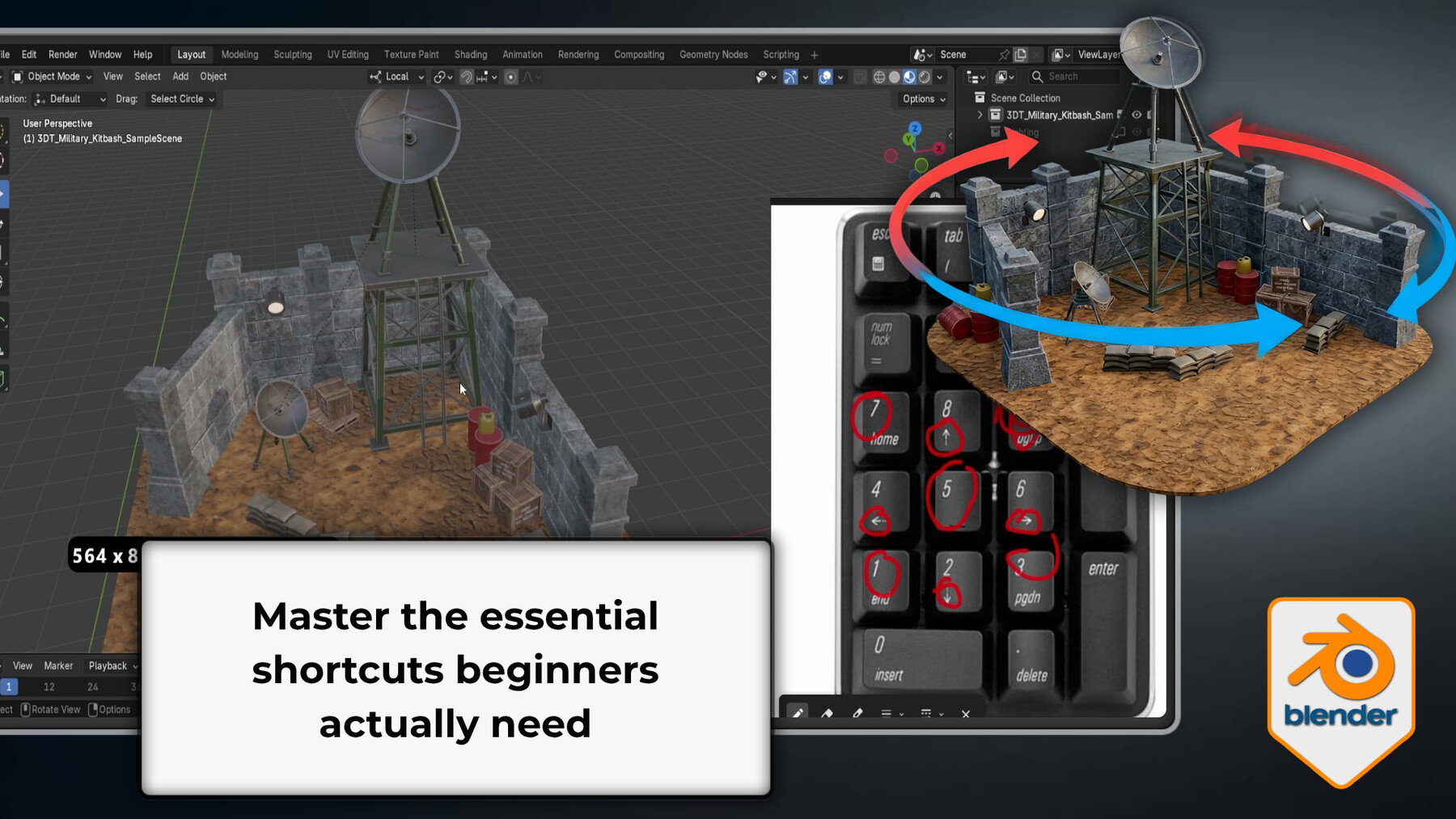
Numpad views and Quad View
Numpad 1/3/7 for Front/Side/Top, Ctrl+ for negative-axis opposites, Numpad 5 for Perspective/Orthographic, Numpad 4/6 for isometric angles, Numpad 0 for camera view, and Quad View for all four axes at once.
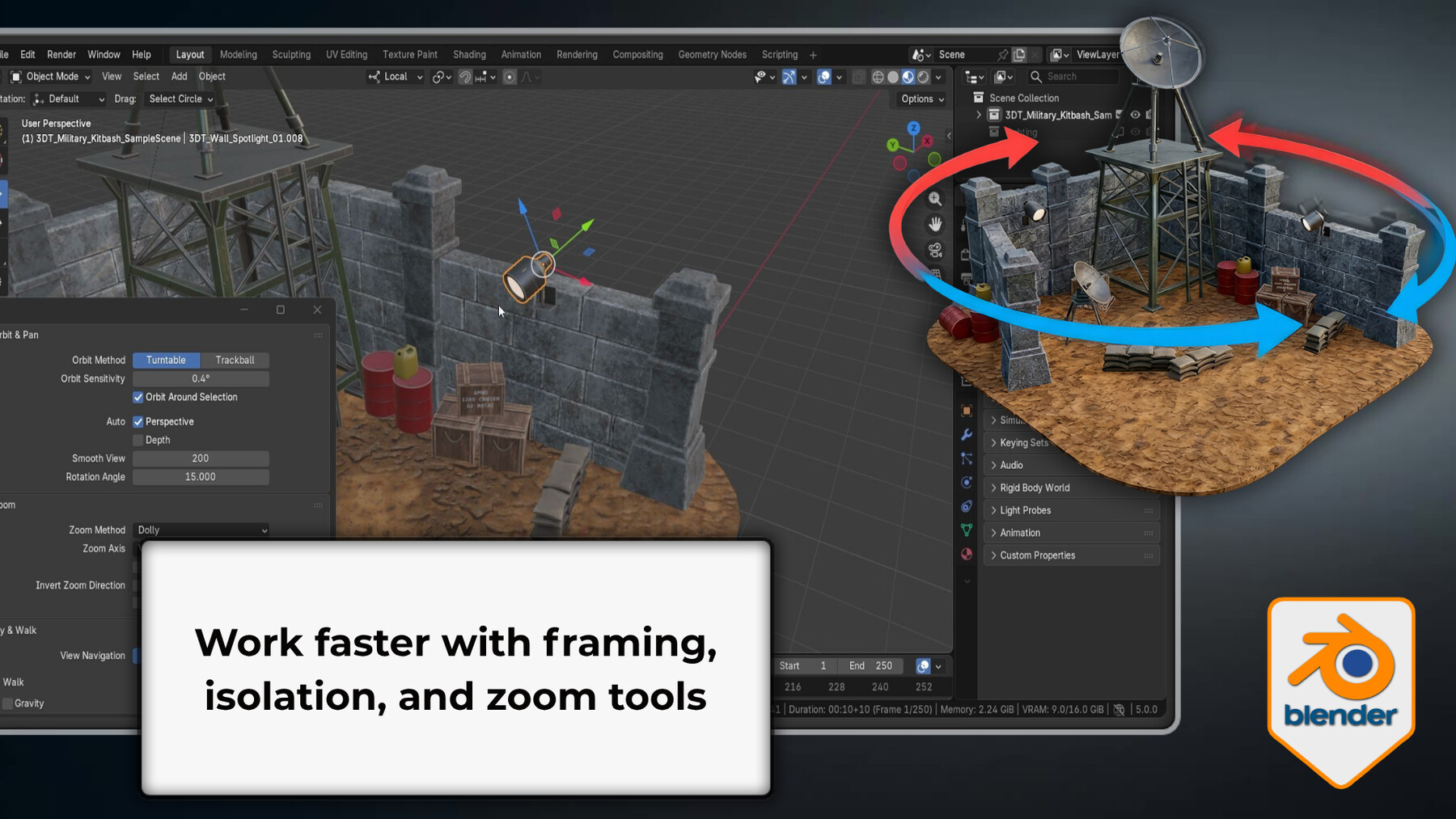
Orbit and zoom preferences
Turntable vs Trackball orbit, Orbit Around Selection (permanently fixes the "orbiting into nothing" problem), Auto Perspective, Dolly/Scale/Continue zoom modes, and Zoom to Mouse Position for predictable zooming into mesh detail.
Input configuration for any hardware
Emulate Numpad for laptops, Emulate 3-Button Mouse for tablets, multi-touch gesture support, NDOF/3D mouse configuration, and Mouse Drag Threshold adjustment.
Framing and isolation
Numpad . to frame the selection, Home to frame all, Shift+C to reset and reframe, Shift+B for Zoom Region, and / for Local View.
What you'll be able to do by the end
- Orbit, pan, and zoom precisely in any scene without losing your place
- Snap to Front, Side, Top, isometric, and camera view on demand
- Explore and inspect scenes in first person with Fly and Walk modes
- Frame any object or selection and return to context in one key press
- Switch between Perspective and Orthographic purposefully
- Configure Blender navigation for any hardware setup - laptop, tablet, or 3D mouse
Who this is for
This course is for complete beginners, self-taught artists who've been navigating by instinct rather than knowledge, and artists switching from other 3D software who need to rebuild their muscle memory for Blender's system. If you use a laptop or drawing tablet, the input configuration lessons are particularly valuable.
Who this is for
This course is for complete beginners, self-taught artists who've been navigating by instinct rather than knowledge, and artists switching from other 3D software who need to rebuild their muscle memory for Blender's system.
Working through all 11 lessons gives you a solid, gap-free navigation foundation. No more losing your view mid-session. No more avoiding parts of the viewport because you're not sure how to get back. No more fighting the camera while trying to focus on what you're actually building.
Blender 5 compatible. No prior Blender experience required.
This is Course 1 of the Blender Essentials for Beginners series. Course 2 - Transform and Gizmo Basics - builds directly on the navigation foundation established here.
Happy modelling everyone!
Neil - 3D Tudor
Release Notes
- Fixed File Structure
CATEGORIES
Special Offer! Get 20% off when you buy 2 products. Get 35% off when you buy 3 or more products. Applies to all products from this seller only from USD $1.00 to USD $100.00
Standard Use License
USD $9.99
License: Standard License
Stock Assets
For personal use and one commercial project (up to 2,000 sales or 20,000 views).
TutorialsOne copy to be used by a single user.
Installable ToolsOne installation by a single user.
Learn MoreFiles (13)
https://artstn.co/m/29Y2a
Copied
More by 3D Tudor

Add a tip for 3D Tudor
Tips are appreciated, but optional!