Sign Up with Epic Games










https://www.youtube.com/watch?v=LMZRbuCiSMo
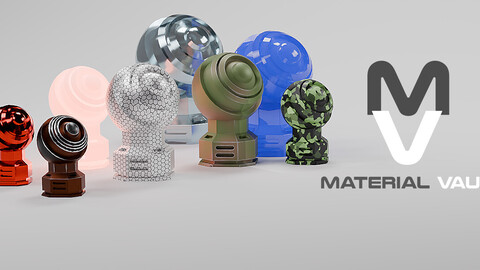
✅ Material Vault – Complete Surface Creation & Decal Toolkit for Blender
Material Vault is a professional, artist‑focused texturing suite for Blender that combines three powerful tools into one seamless workflow:
- Material Vault Core – stackable masks, procedural effects, and a persistent material library
- Decal Placer – image‑based decal placement with automatic UVs and aspect‑ratio control
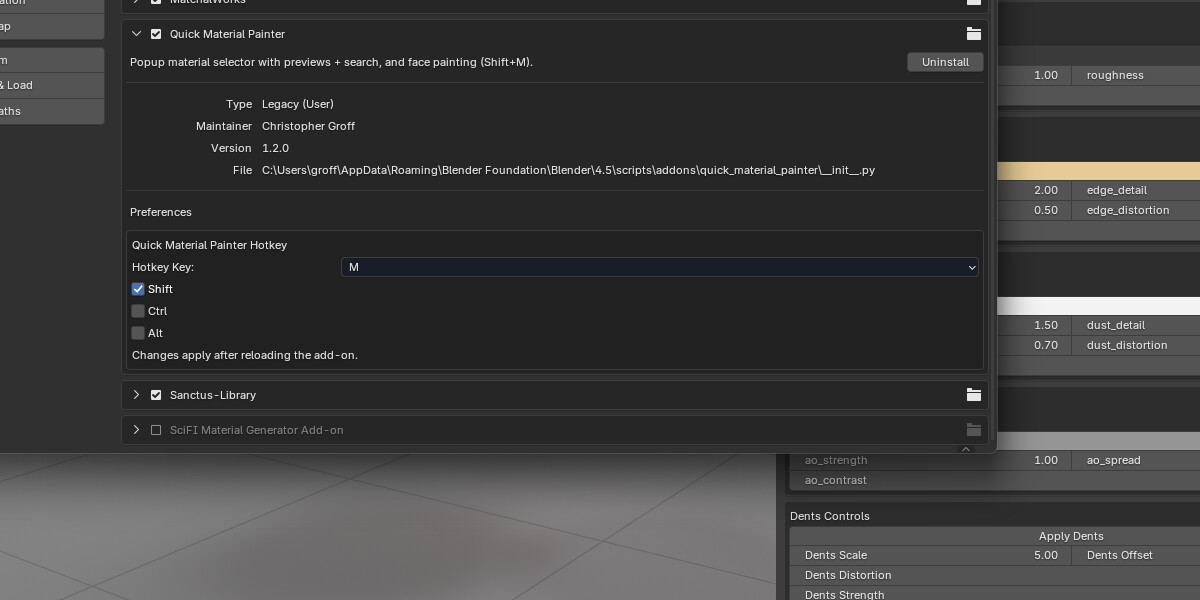
- Quick Material Painter – fast material assignment directly onto mesh faces
- Over 40 Grunge Masks including separate 40 alpha brushes
- 7 Procedural Patterns - sci-fi camo, diamond, smooth lines, and more.
- Designed to Create and Store Your Own Smart Materials for Reuse - with all the masks you need, a starter pack of patterns, and grunge masks
- Custom Categories Creation system - customize which materials go into which category
Together, they form a unified system for building, detailing, and managing materials with speed, precision, and creative freedom.
Material Vault is designed for hard‑surface artists, game asset creators, environment designers, and anyone who wants a fast, intuitive way to texture models.
✅ What’s Included in the Material Vault Package
1. Material Vault Core (MV)
A complete material‑building engine with:
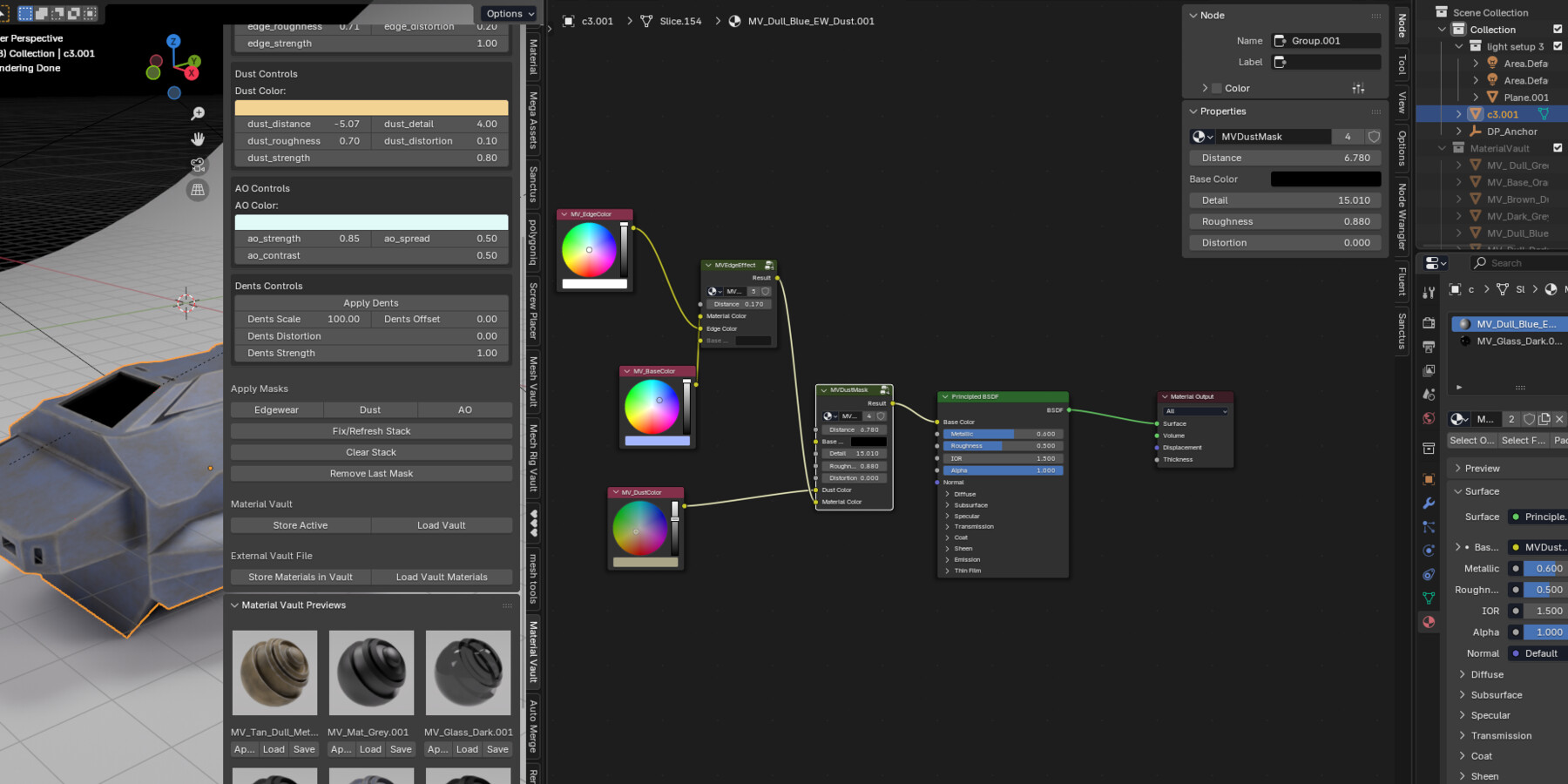
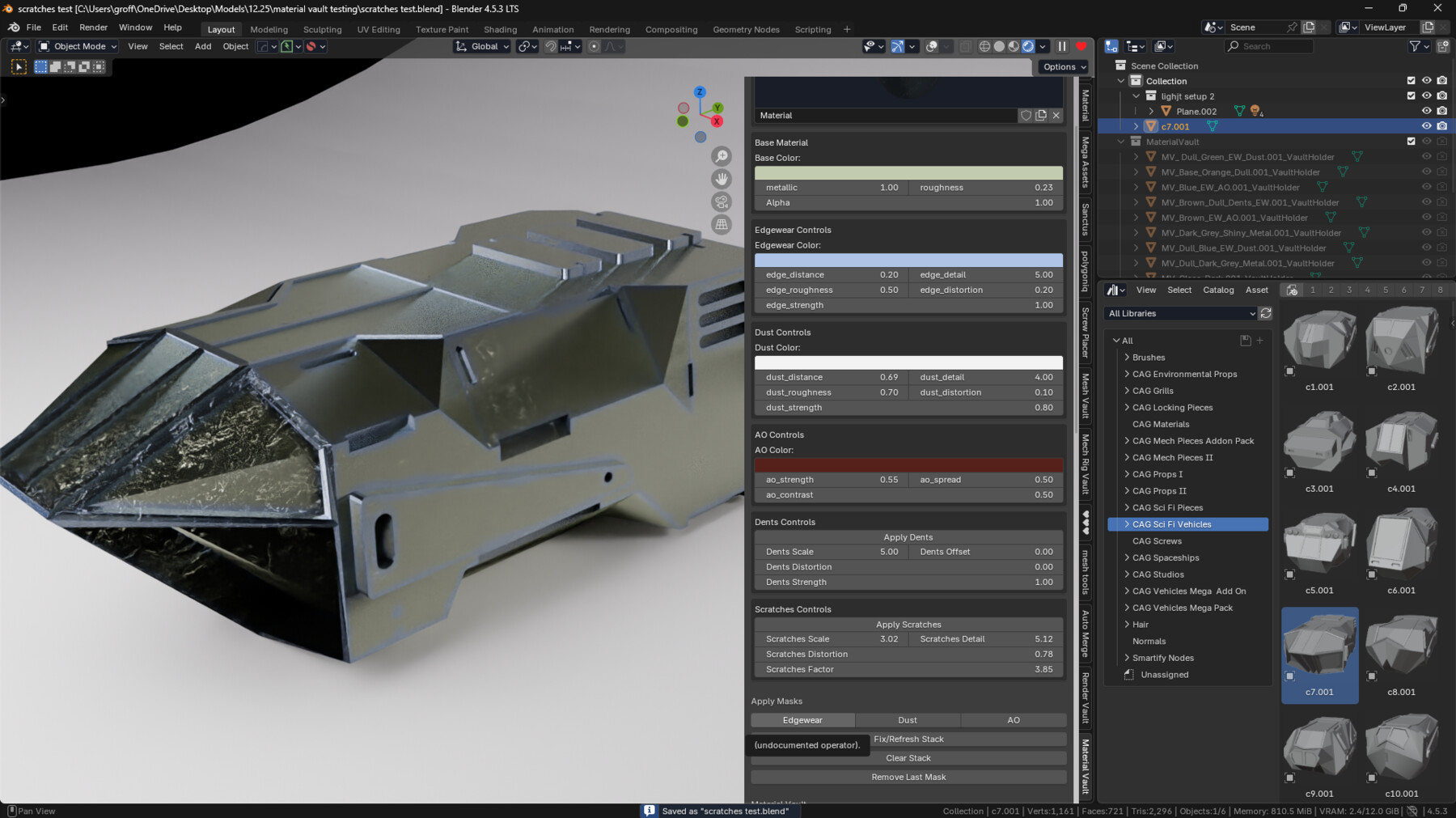
✅ Stackable Procedural Masks
Add layered effects to any material with one click:
- Edge Wear – chipped paint, worn metal, stylized erosion
- Dust Mask – dirt, dust, surface buildup
- Ambient Occlusion Mask – cavity darkening and contact shadows
- Dents Mask – surface dents, impacts, and micro‑damage
- Scratches Mask - realistic metals and other surfaces (for now use mix color node to combine dents with scratches mask)
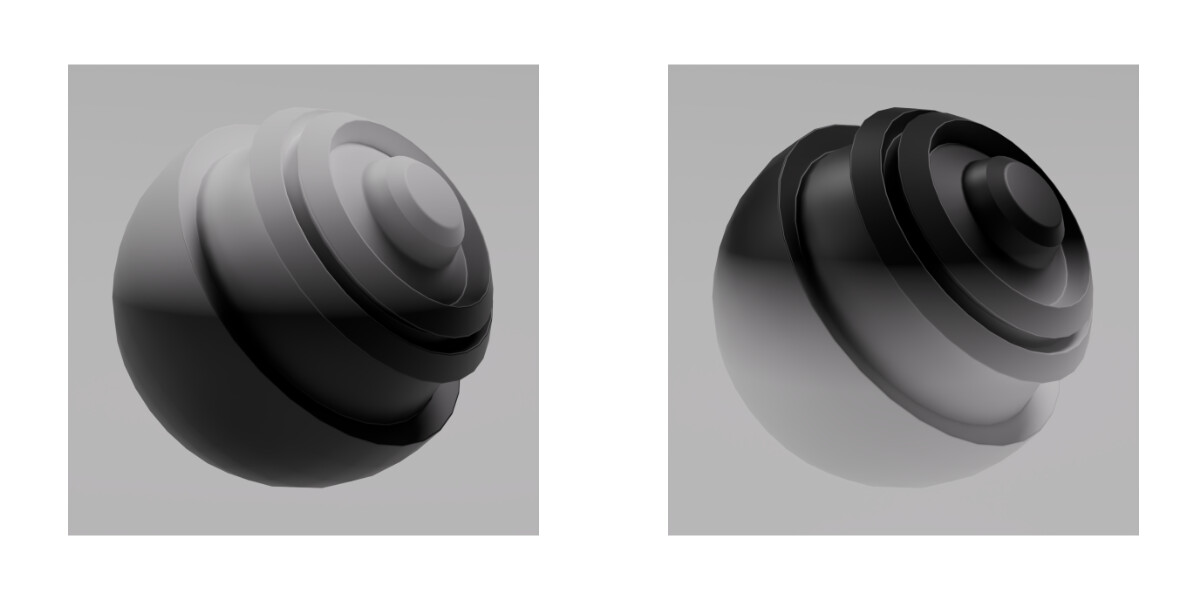
- BONUS- 2 Separate Directional Mask Nodes Included- Top to Bottom and Bottom to Top to complete all your Material Creation needs
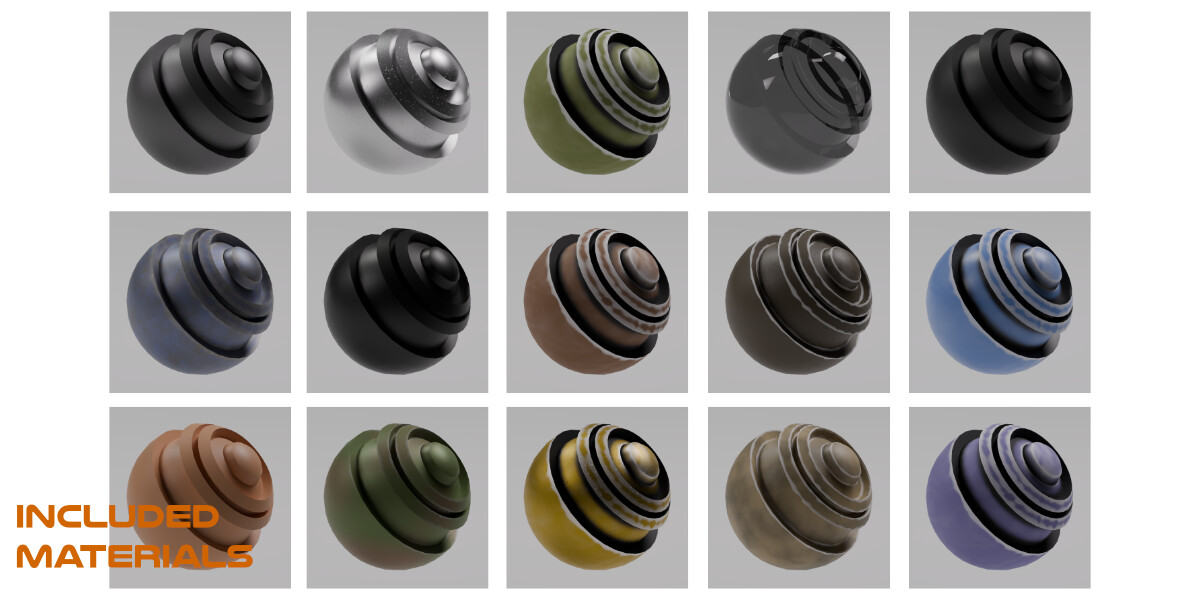
✅ Material Vault Library (60 Materials Included)
A persistent, expandable material library:
- Save any material into your vault
- Load materials across projects
- Export and import vault libraries
- Organize materials with internal or external vault files
- Includes 60 Materials
Material Vault becomes your personal, growing material ecosystem.
✅ Texture Painting
Texture Painting Option – This feature allow use to build textures upon textures, including setting roughness and normal map. With the click of a button it places the nodes. All you to do is add a second uv map, select it in the uv node, and set your color, load a texture (3 included) and connect the base color node into the color mix slot in the MV_PaintMix Node and your all set.
✅ 45 Alpha Brushes and 40 Grunge Masks
- 45 custom alpha brushes for texture painting
- 40 grunge masks for extra realism for your masks and making your own textures
- 8K maximum resolution
2. Decal Placer
A modern, frictionless decal‑placement tool with:
Every decal plane gets perfect UVs instantly.
✅ Aspect‑Ratio Modes
Choose how your decal fits the plane:
- FIT – preserve aspect ratio (no stretching)
- FILL – fill the plane (cropping allowed)
- STRETCH – stretch to fill (classic behavior)
✅ Raycast Placement
Click anywhere on your model to place the decal:
- Move mouse to slide along the surface
- Scroll to scale
- Shift+Scroll to rotate
- Left‑click to confirm
- Right‑click/Esc to cancel
✅ Shrinkwrap Support
Decals conform perfectly to curved surfaces.
✅ Blender 4.5‑Safe Material Pipeline
Includes all the fixes:
- Pixel buffer evaluation
- GPU texture upload
- Shader recompilation
- Alpha blend transparency
- Backface settings
- Filepath binding
Decals always load correctly — no black planes, no invisible textures.
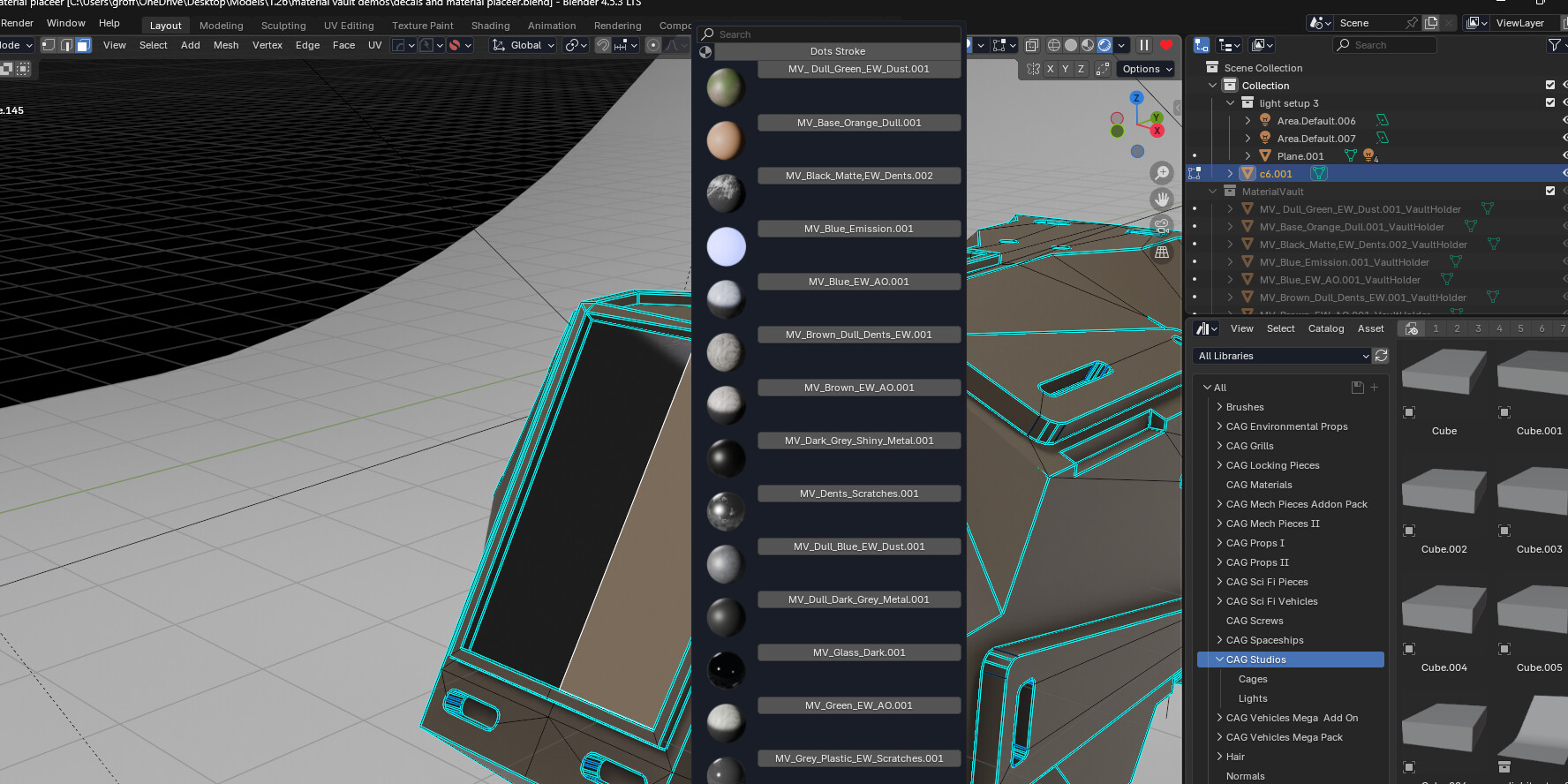
3. Quick Material Painter
A fast, intuitive face‑painting tool for assigning materials:
- Material previews
- Assign materials to faces with a single click
- Perfect for hard‑surface paneling, color blocking, and rapid iteration
- Hotkey‑driven (Shift+M by default)
This tool dramatically speeds up the process of applying materials to specific regions of your mesh.
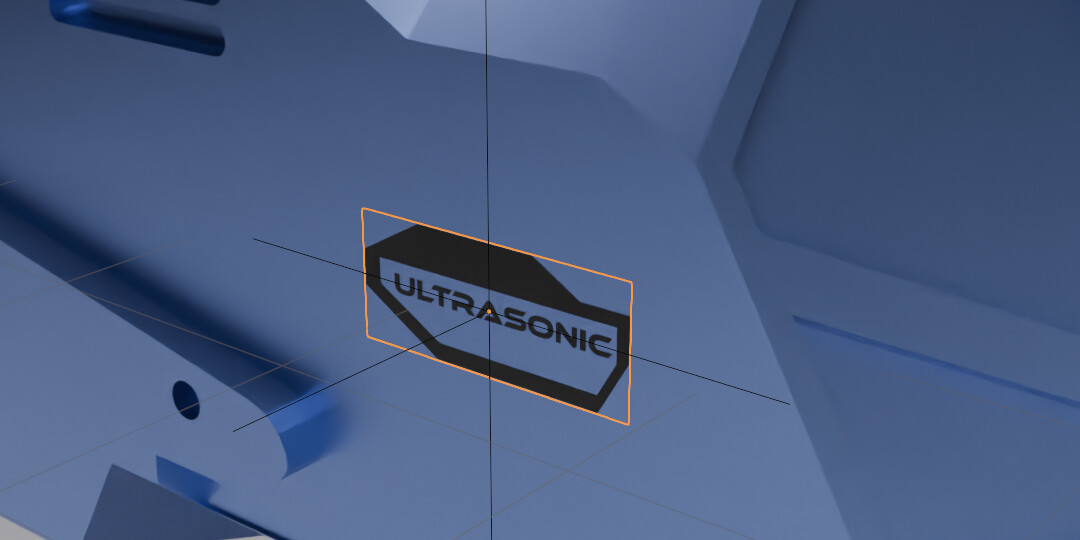
✅ Sci‑Fi Decal Starter Pack (Included)
Material Vault ships with a curated starter pack of sci‑fi decals, perfect for hard‑surface and mech design:
✅ Numbers
- Clean numeric sets (0–9)
- Industrial stencils
- Bold mech‑style numbering
- Micro‑label digits for small parts
✅ Titles & Labels
All decals are PNG with alpha, optimized for the Decal Placer workflow.
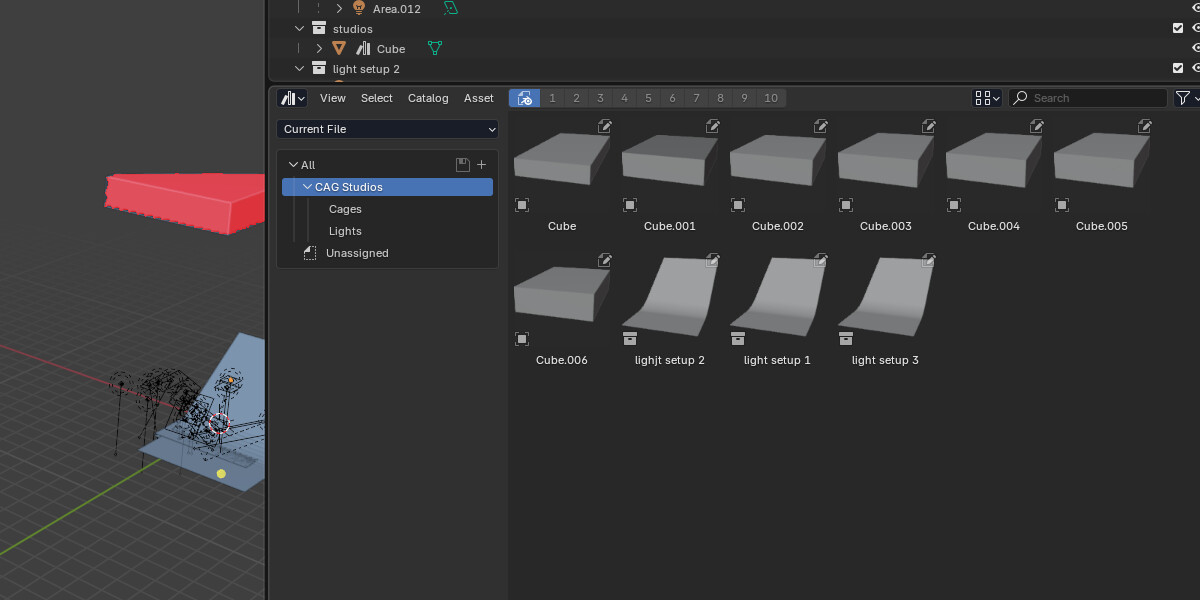
⭐ CAG Studios – Lookdev Lighting Pack
A professional lighting toolkit included with Material Vault
The CAG Studios Lookdev Lighting Pack is a curated set of studio‑grade lighting assets designed to make your materials, decals, and hard‑surface models look their absolute best. Built for artists who want clean, reliable, production‑ready lighting without the hassle of setting up scenes from scratch, this pack integrates seamlessly with Blender’s Asset Browser for instant drag‑and‑drop use.
🔶 Seven Surround Lighting Boxes
These modular lighting boxes fully enclose your model in a controlled environment, giving you:
• Even, studio‑quality illumination
• Soft, gradient‑based reflections
• Clean silhouettes for product shots
• Perfect conditions for evaluating roughness, metallic, and mask details
Each box is uniquely tuned to highlight different surface responses, making them ideal for testing Material Vault’s edgewear, scratches, dust, and AO layers.
🔶 Three Professional Light Setups + Backdrop
For artists who want a ready‑to‑render presentation scene, the pack includes three handcrafted lighting rigs, each paired with a smooth, modern backdrop.
You get:
• A 3‑Point Studio Rig for clean, cinematic highlights
• A Hard‑Surface Showcase Rig with crisp reflections and controlled shadows
• A Soft Gradient Rig for product‑style renders and portfolio shots
The included backdrop creates a natural falloff and eliminates harsh horizon lines, giving your models a polished, gallery‑ready look.
✅ Instruction Guide for All Three Add‑Ons
✅ Material Vault – User Guide
1. Material Vault Core
Creating or Editing a Material
- Select an object
- Assign or create a material
- Open the Material Vault panel in the Sidebar
- Adjust:
- Base Color
- Metallic
- Roughness
- Alpha
Changes update instantly.
Adding Mask Effects
- In the Material Vault panel, click:
- Add Edgewear
- Add Dust
- Add AO
- Add Dents (Add Last if you want to adjust the other masks first)
- Each mask appears as a node group in the shader
- Adjust mask settings in the panel:
- Color
- Strength
- Detail
- Distortion
- Spread
Masks stack automatically in the correct order.
Saving Materials to the Vault
- Select the object with the material
- Click Store Active Material
- The material is added to the Vault collection
- Previews are generated automatically in the top of the menu, but for custom previews you need to use the included preview scene file as well as duplicate each camera for every new material created - whether within the add or imported from external source.
Loading Materials (15 included- add more as desired)
- Click Load Vault Materials to refresh
- Click any material preview to assign it
- Use Apply to Selected to assign to multiple objects
- don't change prepackaged materials unless your sure you want to change them-if you decide to change them you'll need to do so in the shader menu manually and change the preview image- not recommended)
Exporting / Importing Vault Libraries
- Use Export Vault Library to save your materials
- Use Import Vault Library to load them into a new project
- Also able to add masks to pbr materials (just add own pbr materials and go into shader menu and replace material node with image node- plug rest of pbr files in as would with regular pbr texture into the principled bdsf) use math node for mixing normals. for multiple masks first attach them to a new material created with the addon add the image texture node (set to noncolor for other than albedo and albedo- than plug the albedo into where you unplug the material rgb instead. Adjust all masks within the shader menu)
2. Decal Placer
Placing a Decal
- Press Shift+Y (or your custom hotkey)
- Choose an image file (PNG recommended)
- Select:
- Shrinkwrap (optional)
- Fit / Fill / Stretch mode
- Click OK
- Move your mouse to position the decal
- Scroll to scale
- Shift+Scroll to rotate
- Left‑click to confirm
Tips
- Use FIT for logos and symbols
- Use FILL for panel graphics
- Use STRETCH for stylized effects
- Shrinkwrap helps decals follow curved surfaces
3. Quick Material Painter
Painting Materials on Faces
- Enter Edit Mode
- Press Shift+M (or your custom hotkey)
- A popup appears with:
- Material previews
- Search bar
- Click a material to start painting
- Click faces to assign the material
- Press Esc to stop painting
Tips
- Perfect for panel lines, color blocking, and mech detailing
- Works beautifully with Material Vault materials
For creating categories, select add to category, type in box category to create. Press okay. For placing materials within custom already made categories make sure to clear input box for typing in name and just select from dropdown. When adding a new category use all for dropdown. Open a new blend file and press bottom load vault materials button and duplicates will disappear.
Release Notes
NOW COMPATIBLE WITH BLENDER 5.0+ JUST DOWNLOAD THE ZIP NAMED MATERIALVAULT INSTEAD OF THE ONE MATERIALVAULT_ADDON FOR USE IN BLENDER 5.0+
CATEGORIES
ADDITIONAL INFORMATION
Commercial License
USD $44.97
License: Extended Commercial License
Stock Assets
For use on an unlimited number of commercial projects with no limits on sales or views.
Learn Moreone user commercial Read MoreRead Less
Files (13)
Studios
USD $197.97
License: Extended Commercial License
Stock Assets
For use on an unlimited number of commercial projects with no limits on sales or views.
Learn Morestudios up to 5 users Read MoreRead Less
Files (13)
Personal
USD $38.97
License: Standard License
Stock Assets
For personal use and one commercial project (up to 2,000 sales or 20,000 views).
TutorialsOne copy to be used by a single user.
Installable ToolsOne installation by a single user.
Learn MoreFor hobby and non commercial use Read MoreRead Less
Files (13)
This digital product contains promotional content
The author has indicated this digital product promotes a brand, product or business (whether their own or someone else’s).
https://artstn.co/m/yAaX8
Copied
More by C. G.

Add a tip for C. G.
Tips are appreciated, but optional!